
About resale products
If your product line contains externally-made products, you can still track these in the app if required.
If you already track the item as a material, you don't need to re-enter it as a product. The Create Resale Product option builds the product and its recipe for you, and the material stays in place as your stock record.
To do this manually, you'll need to enter the product as a material so that it is included in your inventory. You'll then need to manufacture the material into a product. This will move your material cost up to the product level.
We'll cover:
- How to manually create a resale product
- How to set up imported products as resale items
- Changing a material you already track into a product
- Reselling an item and using it in a bundle
- Finding Create Resale Product
If you are pulling your products from a connected integration, you should structure this manually by adding the material to the imported product's recipe. If you are not pulling your products from an integration, you can use the Resale Product workflow to create this structure quickly.
To manually create a resale product:
- Load your resale products into the app as Materials.
-
Click the vertical ellipsis (⋮) to the left of the material's name, then select Create Resale Product. You'll find this menu at the top of the material's page, and next to each material on the Materials page.
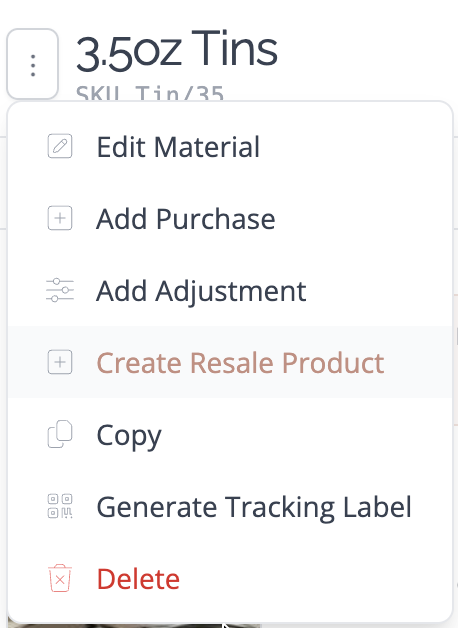
This option creates a product with the same name, SKU, description, and photo as the material, then builds a recipe that uses one of the material. This provides you with the 1-1 linkage you need between your resale material and product. When it finishes, you'll return to the Materials page, and the new product appears on your Products page.
If you are on a plan that supports the Auto Manufacture feature, this option will also be selected for the new product automatically (you can switch this off at any time if you wish to do this stage manually).
Important: Select Create Resale Product once per material. It always creates a new product, so using it when a product already exists gives you a duplicate. If the product already exists, add the material to its recipe instead.
To set up imported products as resale items:
Use these steps for any product that already exists in Stocksmith, whether you pulled it from an integration or created it yourself.
- Load your resale products into the app as materials.
- Go to the applicable product and Add a Product Recipe. Add the matching material to the product recipe.
- Now, you'll need to enter a manufacture whenever you need to move the stock to the Product level to fulfill orders.
Example
An example: Jake sells craft supplies, and one of his products is Green Ribbon. To track this as a product in the system, he needs to:
- Create a Material called “Green Ribbon”.
- Click the ⋮ to the left of the material's name and select Create Resale Product to create the product and recipe structure.
- When purchasing more “Green Ribbon,” he would then create Purchases to increase the material stock of the product.
- To move the raw material inventory stock to his saleable product stock, he would create a Manufacture. This can be automated if required using the Auto Manufacture feature.
- Whenever the resale product is sold, Jake would then create an Order.
Can I change a material I've already entered into a product?
You don't need to re-enter it. Select Create Resale Product on the material, as described above. The material stays as a material, and the new product uses it in its recipe, so your stock and costs stay linked between the two.
What if I resell an item and also use it in a gift box or bundle?
Keep the item as a material, then set it up in two places:
- Select Create Resale Product on the material. This creates the product you sell on its own.
- Add the same material to the recipe of your gift box or bundle, as you would any other material.
Both products use the same material stock, so you only record purchases once, against the material. The resale product's Auto Manufacture setting only applies to orders for that product, so your gift box is manufactured as it always was.
You don't need Componentize for this. Componentize turns a product you already make into a component so other products can use it. For an item you buy in, the material itself already works as an ingredient. For more on building bundles, see About product bundling.
Can't find Create Resale Product?
- Look for the vertical ellipsis (⋮) to the left of the material's name. The option sits inside that menu rather than as a button on the page.
- Check you're on a material, not a component. Components don't have this option.
- If you have view-only access, the ⋮ menu isn't shown. Ask someone with edit access to create the resale product.
- On the Materials page, materials marked as non inventoriable don't show the option in their ⋮ menu, because they don't track stock.
- If the product already exists, you won't use this option. Follow the steps for existing products instead.