
Changing the Sale quantity for a product
Sale Quantity controls how much stock is deducted from a product when a single unit of it is ordered. You'll see the same value under two different labels: the product's Edit form calls it Sale Quantity, while the product and variation detail pages display it as Sale Batch Quantity.
Sale Quantity is set once on the product and applies to every one of its variations. It can't be set separately for each variation.
To change the sale quantity of a product:
-
Navigate to the edit form for your product (How do I edit a product?)

- Scroll down to the Additional Details section.
-
In the textbox called Sale Quantity, enter the number of items that need to be reduced from stock when a single unit of this product is ordered.
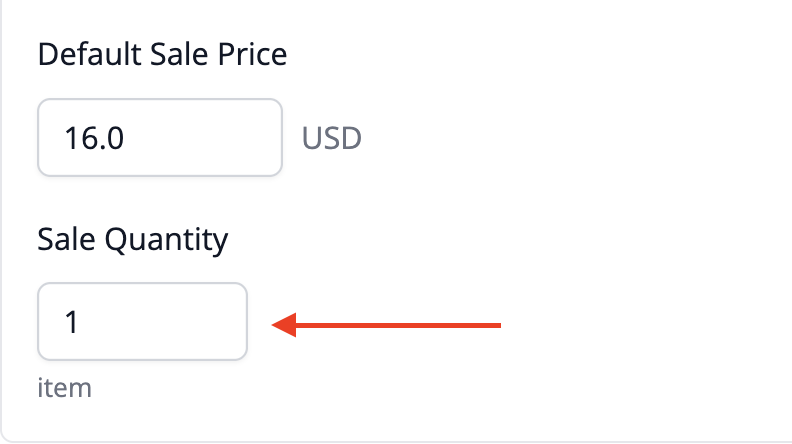
Examples:
Example 1
If you sell a product that contains 4 bars of soap, you should set the sale quantity to 4. Each time this product is ordered, your stock will be reduced automatically by 4.
Example 2
However, let's consider a scenario where you sell items in 12 packs. In this case, if 1 product equals one 12-pack, you should set the Sale Quantity to 1. This indicates that each sale is for one 12-pack. If you were to set the Sale Quantity to 12, the system would interpret each sale as being for 12 12-packs, resulting in incorrect stock adjustments.
Don't confuse Sale Quantity with Manufacture Batch Quantity. Sale Quantity controls how much stock a sale deducts; Manufacture Batch Quantity is a separate, per-recipe setting that controls how many units come out of one manufacturing run. See Enter manufacture information for a recipe.