
About order manufacturing
Learn how you can better track the manufacture status of your orders.
Order manufacture tracking allows you to set an order's manufacture status, allowing you to see at a glance what has been made and what needs to be made next.
What you'll need:
- An eligible plan for order manufacture tracking
- Your Order Manufacture Tracking setting switched on.
In this article, we'll cover:
- How Order Manufacturing Tracking works
- Switching on Order Manufacture Tracking
- Associating manufactures with orders
- Marking an order as manufactured
- Marking multiple orders as manufactured
-
How Order Manufacture Tracking works
When enabled, a new column will appear on your order list page to show whether the order has been marked as manufactured. The filter panel on the left-hand side of the page (or behind the filter icon on mobile) lets you filter your list by manufactured status: Yes, No date, or No. Orders that are automatically marked as manufactured when shipped but missing a manufacture date show as No date.
Each order will also display the manufactured date as part of your summary status timeline at the top of your order details page.
Switching on Order Manufacture Tracking
To turn on order manufacture tracking:
1. Go to your Account Settings page ( How do I find my account settings page?)
2. On your account settings page, scroll down until you find the Track Manufacture Dates for Orders? checkbox and ensure that it is checked.
3. Click the Save Details button at the bottom of the form to confirm the change.
Associating manufactures with orders
It's also possible to directly associate manufactures to an order. This provides a traceability path between a batch manufacture and an order.
If all manufactures associated with an order are marked as Completed, the parent order will automatically be updated as manufactured.
Marking an order as manufactured
To mark an order as manufactured:
-
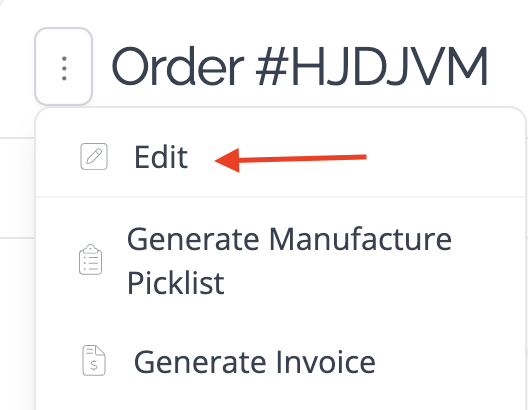
Navigate to the edit page for your order (Learn how to edit an order).
-
Select the date it was manufactured in the Manufactured Date box on the form that appears.

-
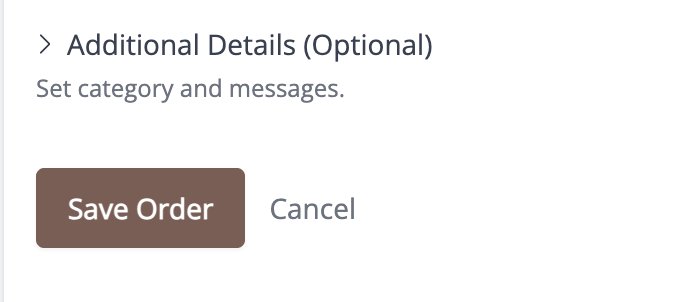
Click the Save Order button.
Orders are automatically marked as manufactured when shipped; however, they will be missing a manufacture date. If you wish to enter a manufacture date after the order has been shipped, follow the instructions above.
Marking multiple orders as manufactured
Manufacture dates can also be updated in bulk from the Order List page.
Topic FAQ
Can I add more than one manufacture to an order?
Yes. A manufacture links to a specific product entry on the order, not to the order as a whole, so an order with more than one product on it can end up with more than one manufacture — each linked using the steps in Associating manufactures with orders above.
Each product entry can only be linked to a single manufacture, though. If you need to record several separate production batches of the same product against one order — for example, you made it in two separate runs — add that product to the order a second time as a new entry, rather than trying to attach a second manufacture to the same entry. That gives you two entries for the one product, each able to carry its own manufacture.