
About order profitability
Learn how our profitability breakdown can help you clearly understand your revenue and margins for an order.
We'll cover:
- Parts of the Order Profitability section
- How to include internal labor in order profitability
- What the estimated internal labor figure is based on
- What to check if estimated internal labor shows zero or is missing
Parts of the Order Profitability section

| Gross Revenue | This is the total ex-tax amount taken for the order. |
| Purchases | This total shows you the total amount for all non-material purchases linked to the order. Associating purchases with orders |
| Material Cost | This is the total material cost attributed to the order. For more information, please see How is the Order Material Cost Calculated? |
| Estimated Internal Labor | By default, your internal labor costs are assumed to be factored out as salary, dividends, or other out of your total profit rather than a set amount per order. However, if you still want to see an estimation of internal labor costs on your profitability, you can switch this setting by following the instructions outlined here: How do I include estimated internal labor in my order profit margins? The figure comes from the recipes of the products on the order, not from your manufactures. See what the figure is based on. |
| Gross Profit | This is the amount left after purchases and material costs are removed from your ex-tax revenue for the order. Overheads and labor are not included in this tally. If you'd like to include labor in your margins, you can switch this setting on by following the instructions outlined here: How do I include estimated internal labor in my order profit margins? |
| Gross Margin: | Your estimated profit margin for this order is based on the Gross Profit calculated. |
Including internal labor in order profitability
To include an estimate of internal labor in your order profit margins:
- Navigate to your Account Settings page. (Finding your account settings page)
-
Scroll down to the Internal Labor section, and select the Include labor in order margins Tickbox.
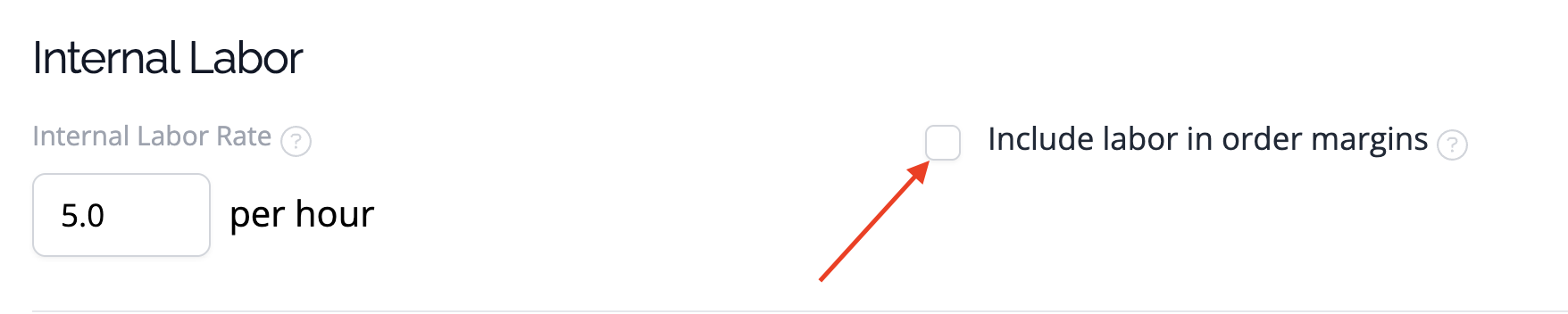
The estimate for internal labor is derived from the current recipe manufacture time for all products/variations listed in the order and the internal labor rate set for your account. If you change your labor rate or manufacture time, all orders will display the most recent data (i.e., they will not preserve previous labor rates and manufacture times).
As another indication of labor costs, you can obtain the total labor cost you have attributed to each of your manufactures via your Manufacture Summary Report. The pricing guidance feature on your product page can also calculate estimated product margins, including labor.
What the estimated internal labor figure is based on
The estimated internal labor on an order comes from the recipes of the products on that order. It doesn't use the labor you enter on a manufacture, and it doesn't matter whether a manufacture is completed or not.
For each line on the order that isn't cancelled, Stocksmith:
-
Finds the recipe. If the line is a variation with its own recipe, Stocksmith uses that one. Otherwise, it uses the product's recipe.
-
Works out the labor cost per unit from the recipe's Batch Manufacture Time (Estimated) and your Internal Labor Rate in Account Settings. If the recipe includes components, their labor cost is added too.
-
Scales that cost up to the quantity on the order.
The order's estimated internal labor is the total of all its lines. When you have Include labor in order margins ticked, this estimate is also taken off the order's gross profit and margin.
The minutes you enter on a manufacture count toward that manufacture's own labor cost, which you can see in your Manufacture Summary Report. They don't change the estimate on an order. For more on how labor is tracked, see Tracking your internal labor costs.
What to check if estimated internal labor shows zero or is missing
Work through these checks in order:
-
The Profitability section is missing from the order. If you can't see the Profitability section at all, your user doesn't have Profitability access. Ask the account owner to check the Profitability option in your user settings.
-
The labor line is missing from the Profitability section. Check that Include labor in order margins is ticked in the Internal Labor section of your Account Settings. The line only appears when it's on.
-
Your Internal Labor Rate is zero. In the same Internal Labor section, make sure the Internal Labor Rate is set to your hourly rate. A rate of zero gives an estimate of zero.
-
The recipe has no manufacture time. Open the recipe for each product on the order and check that Batch Manufacture Time (Estimated) is more than zero minutes. If the line is a variation with its own recipe, check the variation's recipe, because Stocksmith uses it instead of the product's recipe. See Enter manufacture information for a recipe.
-
The product has no recipe. A line for a product without a recipe adds nothing to the estimate.
-
The line is cancelled. Cancelled lines aren't counted.
If you've been through the list and the figure still looks wrong, contact our support team and we'll take a look with you.
FAQ
Can I see total revenue by customer in the app?
Yes! You can view the total revenue for a customer directly on their Customer Detail Page. This page shows a summary of all orders and the total sales amount associated with that customer — no export or calculation needed.
Is there a report for customer order profitability?
There isn't currently a built-in report that shows profit by customer, but there's a simple workaround using the Orders export feature that will allow you to see the profitability per customer.
If you'd like to calculate this yourself, you can:
- Export your Orders from the Orders page.
- Filter by customer name in your spreadsheet.
- Use the Grand Total (revenue) and subtract the Order Purchases + Labour + Materials to find the profit per order.
- Sum these profits across all orders for that customer to see their total profit contribution.
If you need help with the steps, feel free to contact our support team — we'd be happy to walk you through it!