
Add, edit, or remove a product
Learn how to add, edit, or remove a product in the app.
We'll cover:
- How to manually add a product
- How to edit a product
- How to set or change a product's cost
- How to remove a product
- How to add products in bulk
Add a product
To add a product manually:
- Sign in to your account.
- Click Products in the main menu.
-
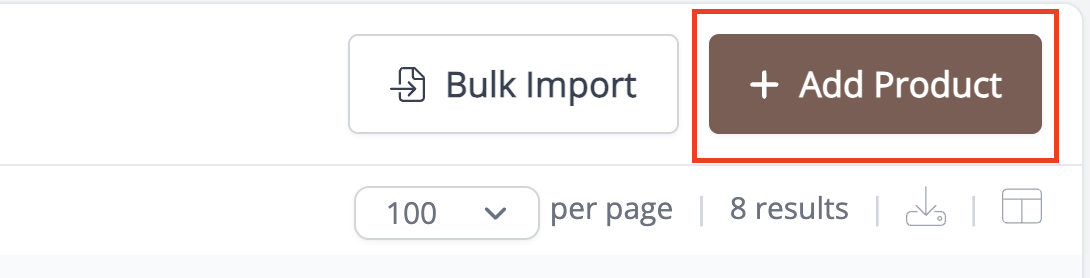
Click Add Product on the top-right side.
- Enter relevant information about the product.
- Click Save Product.
If you're adding more than one product, click Save Product & Add Another to quickly add another product.
If you need to backdate your product stock to reflect current stock levels, skip the starting quantity on the product's page to leave it as 0.
Edit a product
To make changes to a product:
- Sign in to your account.
- Click Products in the main menu.
-
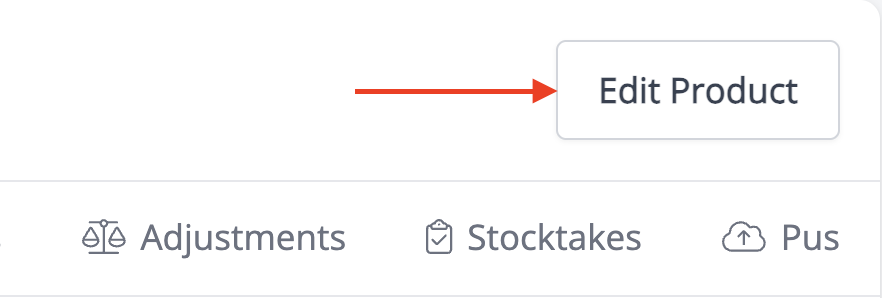
Open the product and click Edit.
- Click Save Product to save your changes.
Set or change a product's cost
A product's cost depends on how its stock got there:
- Stock you make: you don't enter a cost by hand. Stocksmith records the cost of the materials used in each manufacture, based on the product's recipe.
- Stock you already had on your account start date: enter a starting quantity and a Material Unit Cost, which is the cost of one unit of the product.
To enter a cost when you add a product:
- Click Add Product on the Products page.
- Scroll to the Starting Adjustment section.
- Enter the stock you have on hand in the Starting Quantity field.
- Enter the material cost of one unit in the Material Unit Cost field. Leave out labour costs.
- Click Save Product.
To change the cost on a product you've already added:
The Edit page doesn't have a cost field. The starting cost lives on the product's starting adjustment instead.
- Click Products in the main menu and open the product.
- Click the Adjustments tab.
- Find the row labelled Starting, hover your mouse over the vertical ellipsis next to it, and select Edit Adjustment.
- Update the Unit Cost and Quantity fields.
- Click Save.
Manual adjustments don't have a cost field, so adding stock that way won't give it a cost. To bring in stock that has a cost, use the starting adjustment or learn how adjustments work. To see how Stocksmith works out costs, read About material costs.
Removing a product
To remove a product will permanently delete it from the system. Here's how to do it:
- Sign in to your account.
- Click Products in the main menu.
- Open the product page.
-
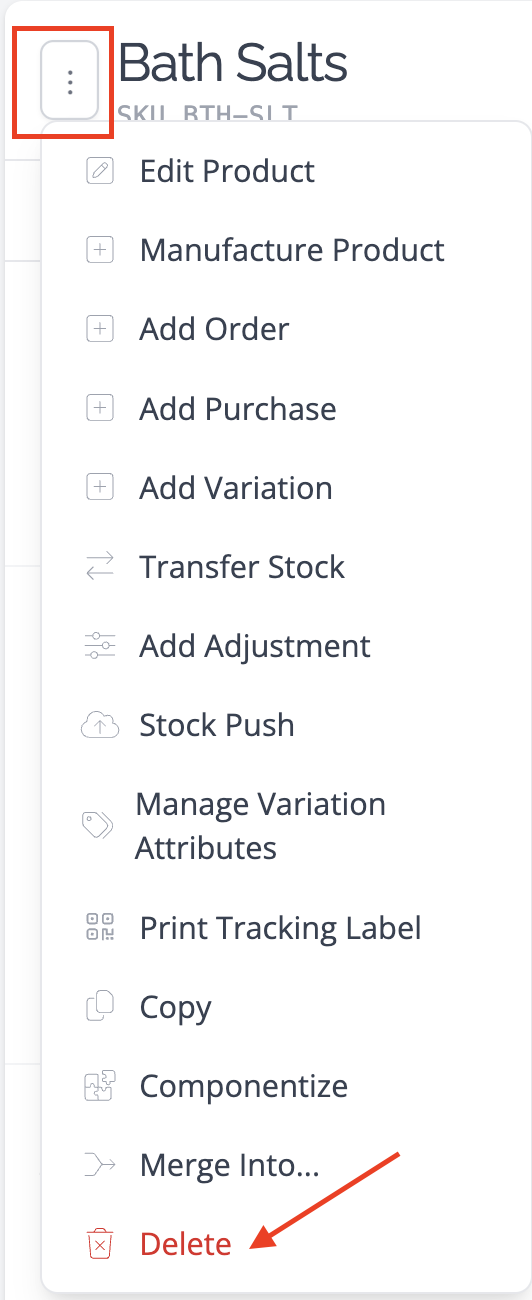
Hover your mouse over the vertical ellipsis and select Delete.
You can only archive the product if you've created a manufacture or added a recipe. To remove the product completely, you'll need to remove any recipes, purchases, manufactures, or stocktakes associated with it.
Looking to import your products instead?
Pull your products from a supported integration: Add or remove an integration.
- Import products in bulk via CSV: Importing purchases via CSV
FAQ
Why can't I find the Material Unit Cost field on my product page?
The Material Unit Cost field only appears in the Starting Adjustment section when you add a new product. It isn't on the Edit page or the product's summary page.
To change the cost of a product you've already added, edit its starting adjustment from the Adjustments tab. The steps are under Set or change a product's cost. If you make the product, its cost comes from the materials used in your manufactures instead.
How do I track the cost of a set amount of product in each unit sold?
To track the cost of a specific amount (like 8 oz) in each product you sell, you'll want to use a recipe. If you're creating the product from raw materials, the recipe should include all the ingredients needed for that amount.
If you're bottling a pre-made product, create a material for the bulk item and include the portion used in the recipe. the app will calculate your cost of goods sold (COGS) automatically based on the materials in your recipe. (About resale products)
For more information, please review our article on how to create a recipe — Add or remove a recipe.
Need more help?
If you have duplicate products after integration, learn how to merge products to move any associated items to the correct product.
If you need more help adding, making changes, or removing a product, contact our support team for help.