
About order shipping
In this article, we'll cover:
Nominating a shipped date for an order
With most integrations, your orders will be automatically updated with the shipped date once the order has been marked as shipped within the integration. Manually created orders can be marked with a shipped date via the orders list view or on the order edit page.
To update orders with the same shipping date in a bulk action, follow the instructions in this help article: Updating Orders in Bulk
To update a shipping date on an order, edit the order and then select the date from the Shipping Date field.
Shipped orders also appear on the Orders Calendar, colour-coded by whether they shipped on time or late, so you can track shipping timelines at a glance.
Note: If your order is pulled from an integration that supports tracking shipped orders, your order will automatically be updated with the shipped date.
Adding shipping costs to an order
Shipping can be added to the total for an Order. It is always assumed to be an additional cost to the item total charged to the customer. The total shipping amounts are then automatically proportioned to each order line item so that shipping totals can be factored into each product level profitability calculation. For details on how shipping costs are proportioned to order line items, see Order Proportional Costing.
To add a shipping cost to an order:
-
Navigate to your Order (or create a new Order)

-
On the form, add the total amount you charged for shipping in the Shipping field.
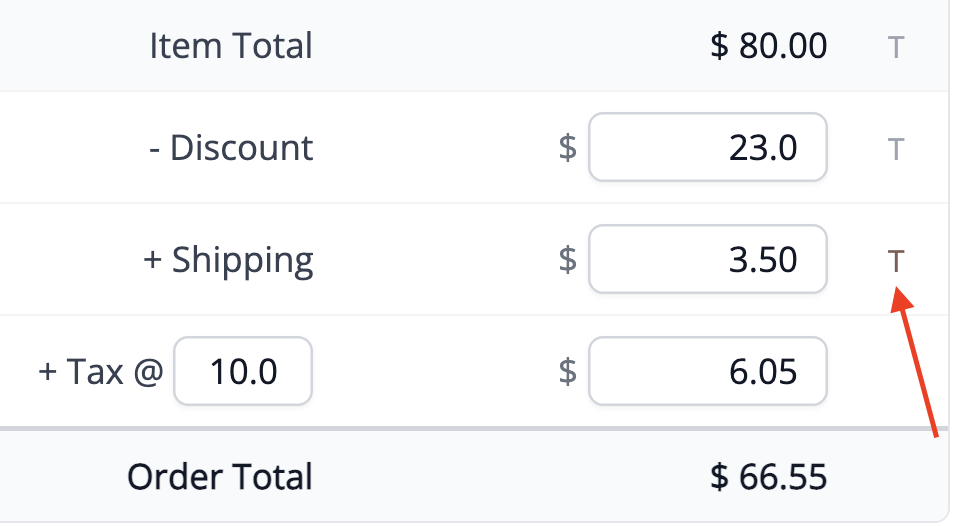
- Save the Order by clicking Save Order at the bottom of the page.
To add an associated shipping purchase to your order, see Handling shipping and postage paid on orders
FAQ
What about orders with no shipping, like in-person or local pickup sales?
The Shipped Date and Shipping fields are both optional, so there's nothing to switch off — you can leave either one at its default for an order that was handed over in person rather than posted.
Shipped Date. Stocksmith doesn't distinguish between a courier shipment and an in-person hand-over — the field just records when the customer received the order. For a market stall, local pickup, or in-person sale, you can enter the hand-over date here the same way you would a courier's shipped date. If you'd rather not track this for these orders, leave the field blank. There's no setting to disable it, and an order with no Shipped Date simply stays marked as Unshipped. Stocksmith doesn't have a separate "complete" step for orders, so nothing else — payment, invoicing, reporting — depends on the Shipped Date being set.
Shipping cost. The Shipping field accepts 0 or more and defaults to 0, so for an order with no shipping cost, 0 is the correct entry, not a blank field.
Orders Calendar. An order with no Shipped Date and no Due Date doesn't appear on the Orders Calendar at all — it's counted separately in the "orders with no ship date set" (or "no due date set") total shown below the calendar, with a link through to view them in the list.
If you do set a Due Date on an in-person order — for example, an agreed pickup day — and it's still unshipped once that date passes, it will show as overdue on the calendar. Adding the Shipped Date once the customer collects the order clears this.
How do I generate a shipping label for an order?
The app doesn't currently support printing shipping labels directly. While inventory, order management, and manufacturing tracking are all handled within the app, shipping and label creation need to be managed through your sales platform (like Shopify, Etsy, etc.) or a dedicated shipping tool.
If you're using one of our supported integrations, we'll pull the order details, but any shipping-related actions like label creation would still be done on the original sales channel.