
Setting your inventory start date
Learn how to set your inventory start date to when you want to begin tracking your inventory.
Your inventory start date, also known as your account start date, is when you want to begin tracking your inventory.
Tip: Set your inventory start date to either the date you signed up for your account or the start of the current month to minimize initial data entry. Learn more about how to backdate past data
Guidelines
- Your inventory start date is automatically set to when you signed up for your account.
- You can move your inventory start date earlier at any time, with no limit.
- You can only move it later up to your earliest recorded inventory entry — once you've adjusted stock or recorded a manufacture, the date picker won't let you select a date later than that entry.
- Stock levels and costings made on your inventory start date are the starting adjustments for any materials or products added to your inventory.
- Don't record stock changes made before your inventory start date.
- You will see an error message if you add orders placed before your inventory start date. To remove the error, remove the order.
Changing your inventory start date
- Go to your Account Settings page. (How do I find my account settings page?)
-
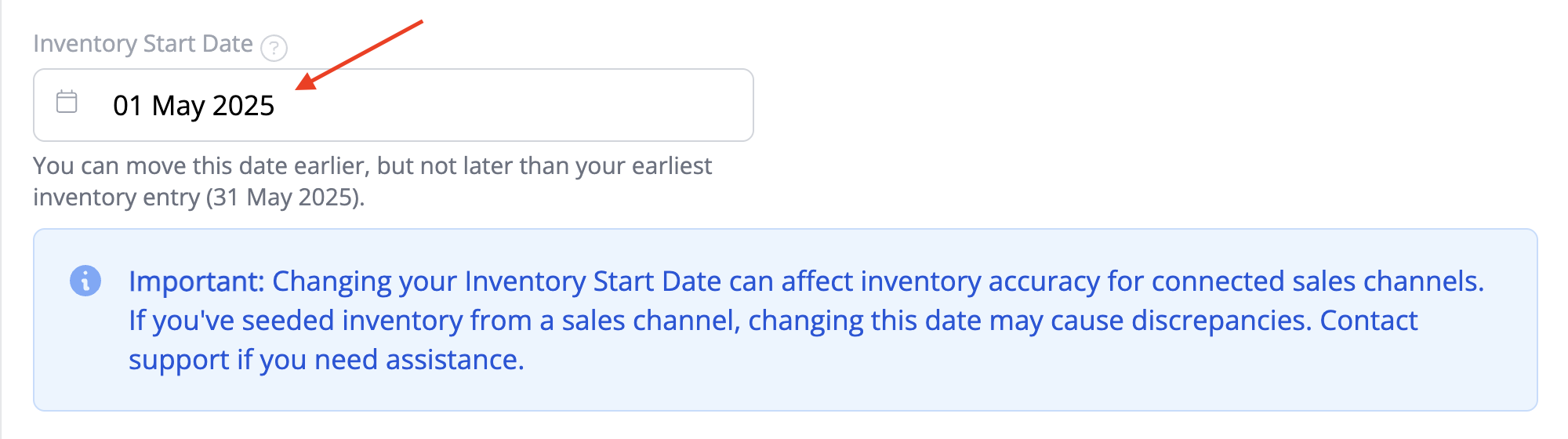
Use the calendar picker under Inventory Start Date to choose your inventory start date. If you've already recorded stock or manufactures, the picker caps how far forward you can move the date, and helper text below the field shows your earliest entry.
-
Click Save Details.
Need Help?
Still have questions about using Inventory Start Date in your account? Please get in touch, and we'll be happy to help.