
Attaching a file to a recipe
Learn how to attach a file, like a document or a photo, to a recipe in the app.
You can attach files to a recipe, so they're always available when you need them.
The app supports PDF, Microsoft Word, PNG, GIF, JPG, CSV, and STEP file formats of up to 100MB in size.
We'll cover:
Types of files you can store
You can store:
- Receipts
- Recipe instructions
- Material data safety sheets
- Anything you need for your recipe
Adding a file to a recipe
To attach a file:
-
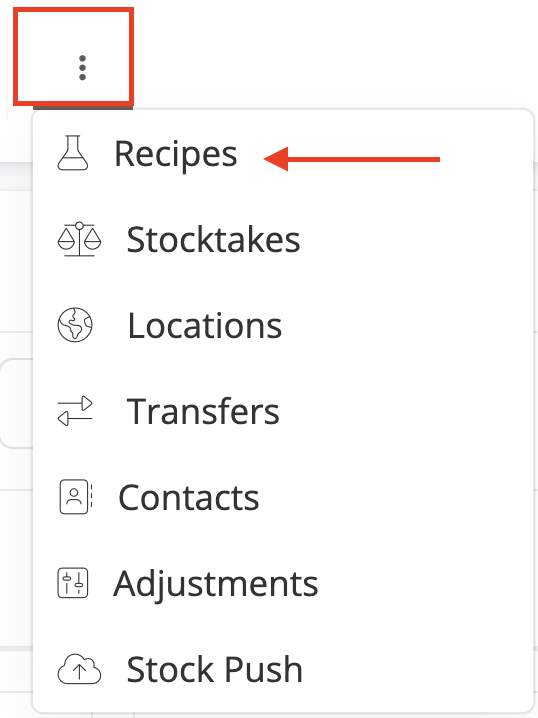
Click (⋮) and choose Recipes in the main menu.
- Choose your recipe from the list.
-
Click + in the Attachments section.

- Enter a description, choose your file, then click Save Attachment.
When you need a copy of your file, click the download icon to save the file to your computer.
Removing a file from a recipe
To remove a file:
- Navigate to the Attachments section of the Recipe page.
-
Click Remove next to the attachment name.

- When the confirmation dialog appears, click OK to confirm the removal.
Need help?
If you're having trouble attaching a file to your recipe, check if it exceeds the 6MB file limit or if it's an unsupported file format.
If you're still having trouble attaching a file or saving a copy to your computer, contact our support team for help.