
Attaching a file to a material
Learn how to attach a file, like a document or a photo, to a material.
You can store:
- Purchase orders or receipts
- Vendor information
- Material data safety sheets
- Children's product certificates
- Anything you need for your materials stock
PDF, Microsoft Word (.doc and .docx), PNG, GIF, JPG, CSV, plain text (.txt), and HTML files are supported. HEIC and WEBP files aren't accepted here. If you're attaching a photo from an iPhone, see the FAQ below for what to do.
To add a file to a material:
-
Click Materials in the main menu.

- Choose a material from the list.
-
Click in the Attachments section.

-
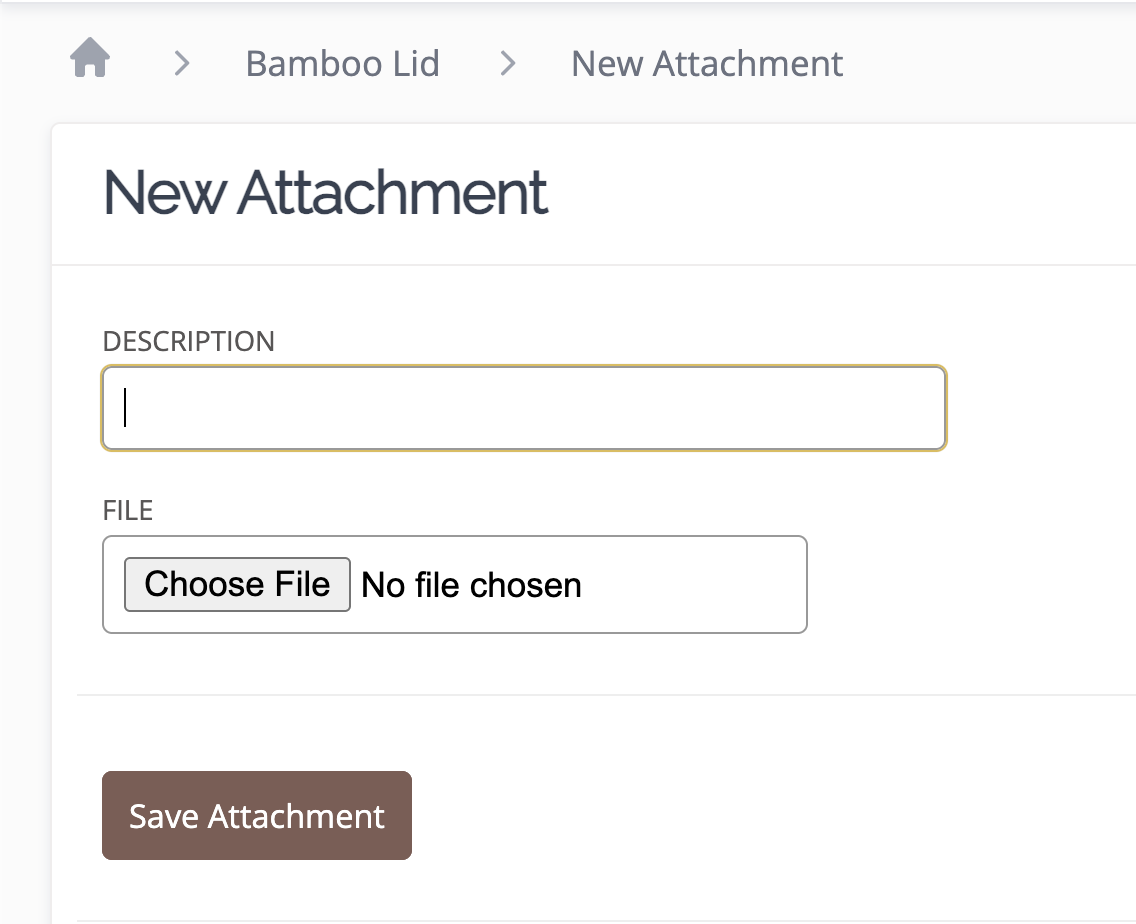
Enter a description, choose your file, then click Save Attachment.
When you need a copy of your file, click to save the file to your computer.
FAQ
Why can't I attach a HEIC or WEBP photo?
Material attachments support PDF, Microsoft Word, PNG, GIF, JPG, CSV, plain text, and HTML files, not HEIC or WEBP. If you're attaching a photo taken on an iPhone, which saves photos in HEIC by default, convert it to JPG or PNG first.
Product, variation, and listing photos use a different upload feature that does accept HEIC and WEBP files, up to 6 MB in size.
How do I delete a wrongly placed attachment?
If you've added an attachment to the wrong record or entry, follow these steps to delete it:
- Locate the Record or Entry.
- Find the Attachment Section.
- Remove the Attachment.
-
Confirm the deletion when prompted.

Want to learn more?
- If you have any questions about your materials, feel free to take a look at the Materials Section.
- Are you encountering any issues with attaching a file? Feel free to reach out to us via email at help@craftybase.com or click here.