
Add, change, or remove a pricing tier
In this article, we'll cover:
Adding a Pricing Tier
- Navigate to your Pricing Tiers page (How do I find my Pricing Tiers page?)
-
Click the Add Pricing Tiers button on the page that appears.

-
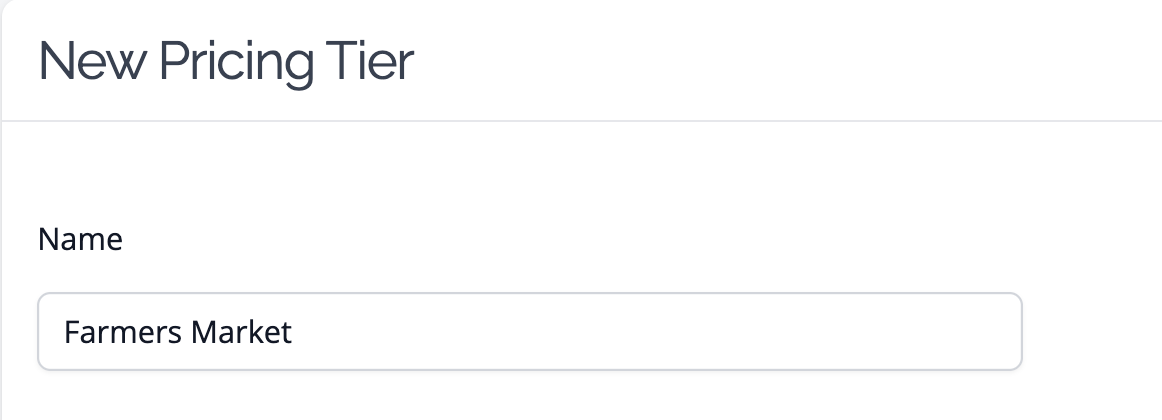
Enter the Name of the Tier. This should be a name that represents the pricing; common examples are Retail and Wholesale. If it is a tier for a specific consignment location, you can name it the same as the consignee.
-
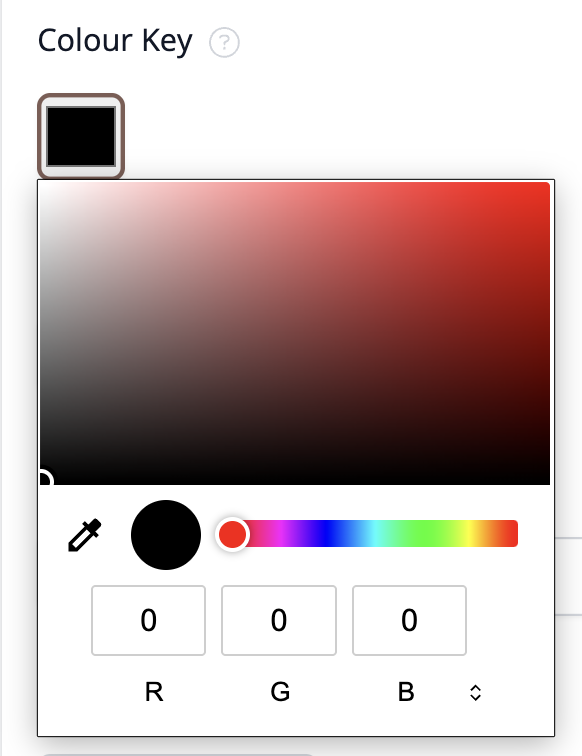
Select a Color Key - the color shown in your Pricing Guidance for the tier.
-
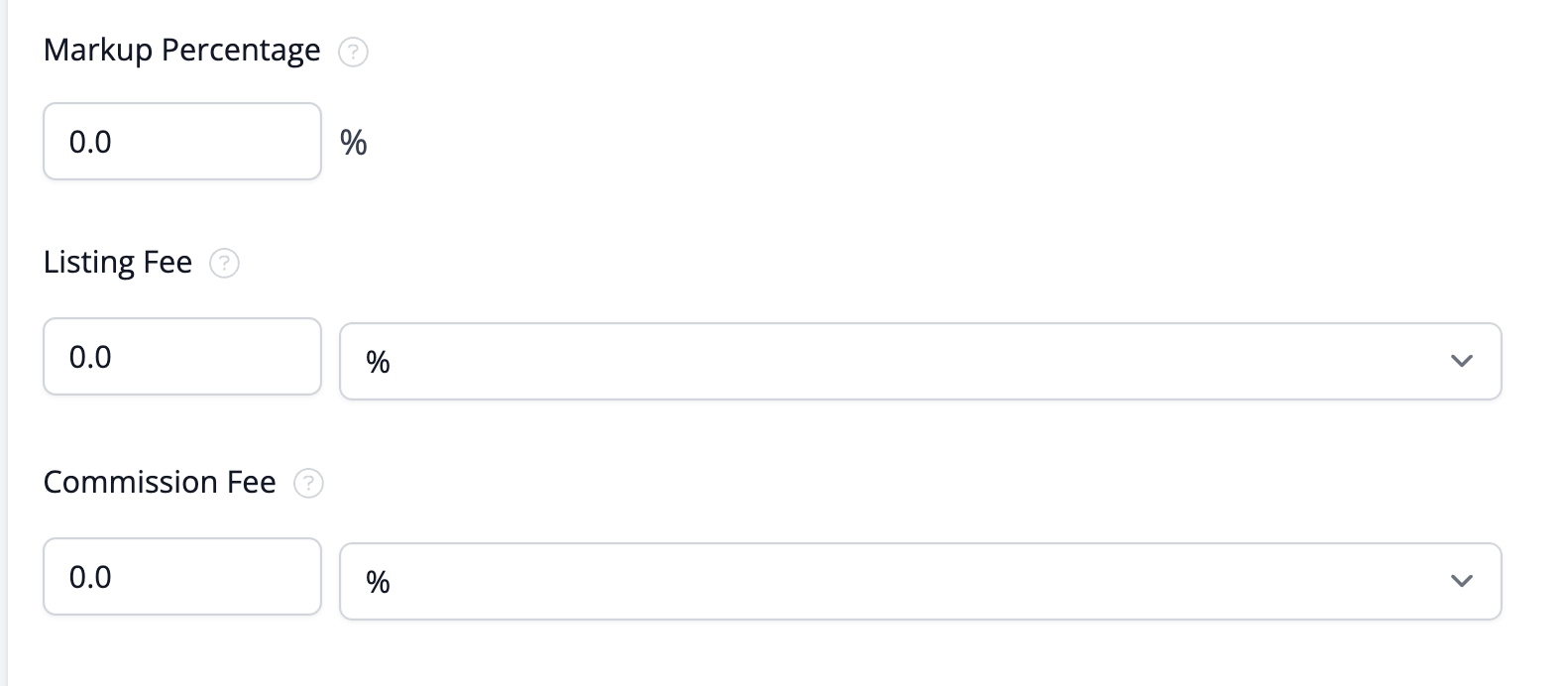
Set your Markup Percentage and any Listing or Commission fees involved.
-
Click the Save button.
Changing a Pricing tier
- Navigate to your Pricing Tiers page
-
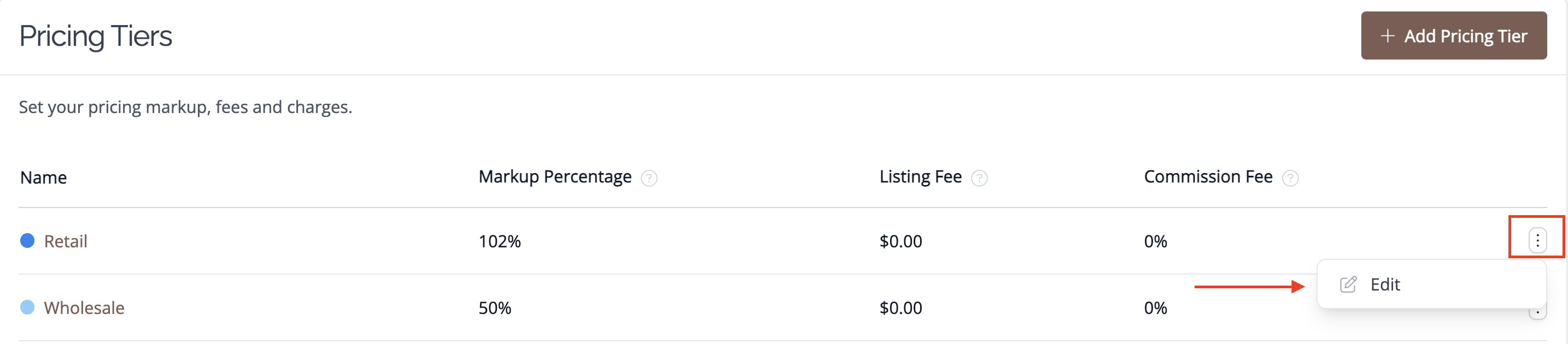
Click on the ⋮ icon and select the edit button of the Pricing tier you would like to change.
- Make your changes to the form that appears
- Click the Save button
Removing a Pricing Tier
- Navigate to your Pricing Tiers page
- Click the name of the pricing tier you would like to remove, to open its detail page.
-
On your far right, click Delete.

-
On the page that pops up, click OK to confirm.
The ⋮ menu next to a pricing tier only offers Edit. To find Delete, click the pricing tier's name to open its detail page.