
Add, edit, or cancel a transfer
Learn how to find, add, change, and cancel transfers of your stock
Moving stock between locations and not sure what to do next? This guide walks you through finding a transfer, adding a new one, editing or cancelling it, and downloading a PDF copy for your records.
Transfers allow you to move stock between your home inventory and an external location (for consignment situations, for example). Read more about how consignment works in the app in the About location tracking article.
In this article:
- Adding a transfer
- Finding a transfer
- Editing a transfer
- Cancelling a transfer
- Downloading a PDF of a transfer
Adding a transfer
To add a transfer:
- Go to your Transfers page.
- Click the Add Stock Transfer button on the right-hand side.
-
On the form, select the Locations you wish to move the stock From and To. Your From location is where the stock is taken from, and your To location is where the stock is moved into.
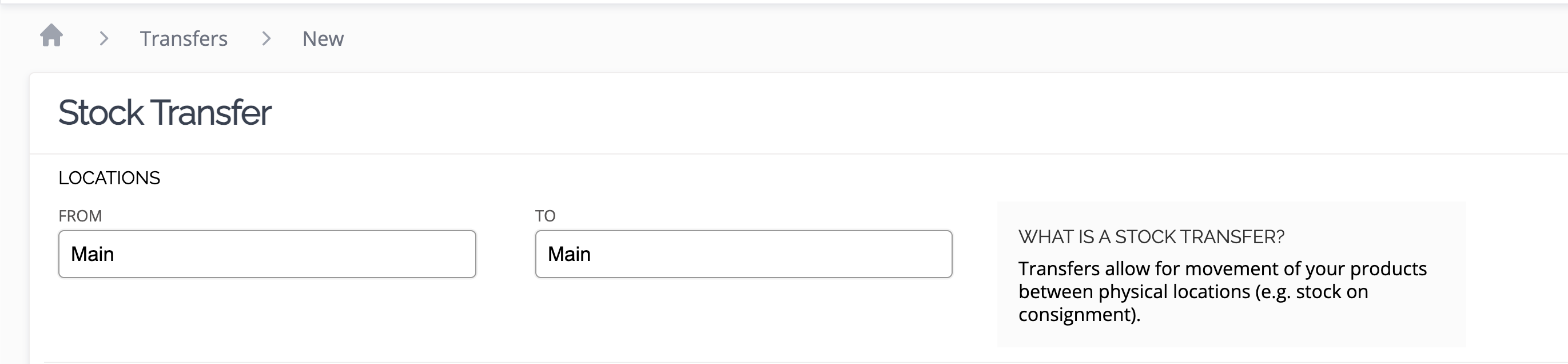
New locations can be added from this form by clicking the + icon inside the search box for each location field.
-
List the products you would like to transfer by searching and selecting products (and variations) from the search box. To add more lines to the transfer, click the Add Product button.
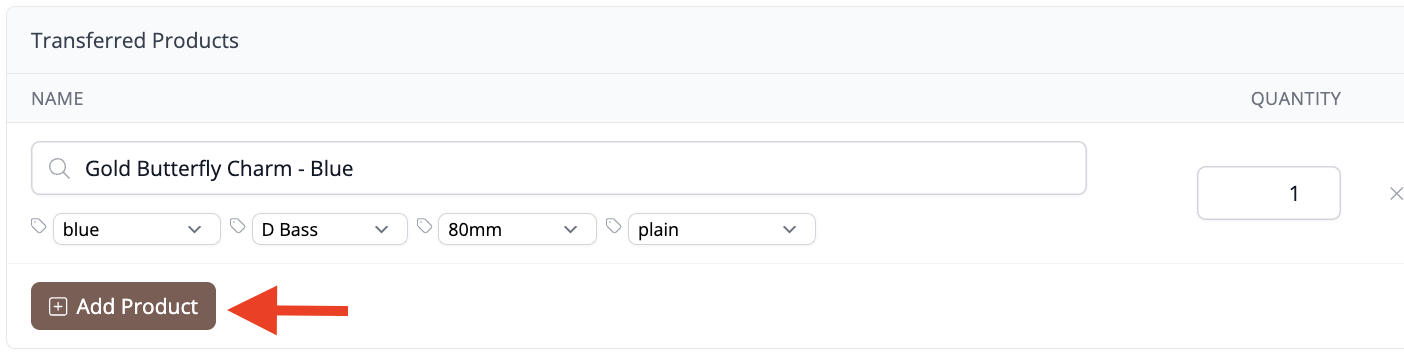
- Select the Transfer Date — this is the date you want your stock moved to the new location.
- Create a unique code for the transfer. An automatically generated code is created for you, but you can change it if you wish.
-
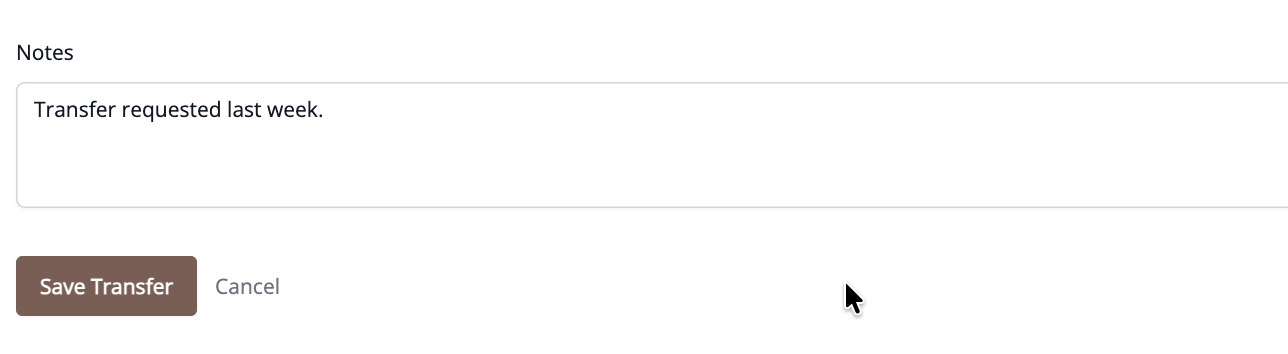
Add any Notes about the transfer if required, then click Save Transfer to activate the transfer and trigger the stock calculations.
Finding a transfer
With only a handful of transfers, browsing the list and matching the code works fine. Once you've built up a longer history, here's how to narrow hundreds of transfers down to the one you need.
Search by code
The search box at the top of the Transfers page only searches by Code — it won't match a product, material, or location name. This is the fastest option if you already have the code, for example from a PDF or an email.
Filter by location
If you know which location the stock moved to or from, use the From Location and To Location filters on the left of the page to show only matching transfers.
Sort the list
Click any column heading — Date, Code, From, or To — to sort the list by that column. Sorting by Date is often quicker than searching by code if you only remember roughly when the transfer happened.
Check a location's transfer history
Each location keeps its own transfer history. Go to Locations, open the location involved, then select the Transfers tab. This shows only transfers to or from that location, already sorted with the most recent first.
There's currently no way to search or filter transfers by the product or material that was moved. If you know the location or roughly when it happened, the filters and sorting above are the quickest path to the transfer you're after.
Export and search offline
Click the download icon above or below the list — it's labelled "Export as CSV" when you hover over it — to export the current view as a CSV file. The export includes the date, code, and locations for every transfer matching your filters, so you can search or sort it further in a spreadsheet.
Editing a transfer
You can edit a transfer in two ways — directly from its detail page, or from the transfers list. Not sure which transfer you need? See Finding a transfer.
From the transfer detail page
- Open the transfer you want to edit by clicking on it from your Transfers list.
- On the transfer detail page, click the Edit button in the top right of the page header.
The transfer detail page shows the transfer code, date, and locations in a structured summary at the top of the page.
From the transfers list
- Go to your Transfers page.
-
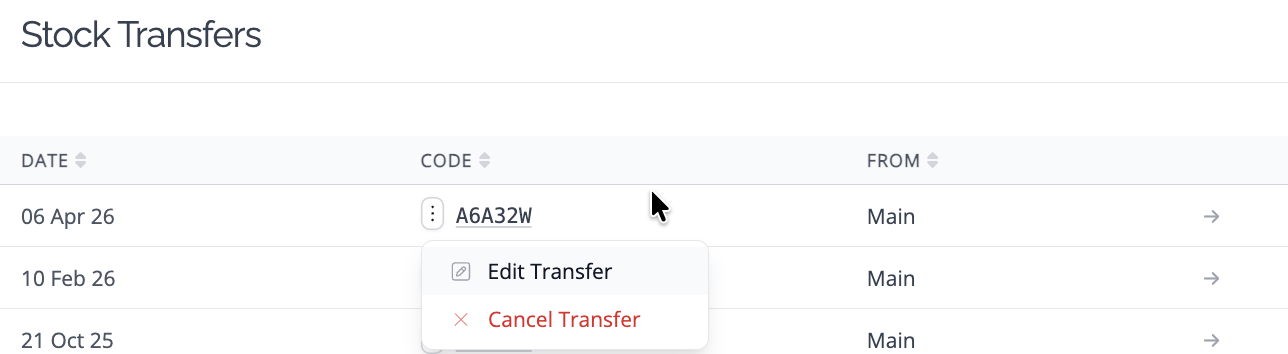
On the list view, hover your mouse over the vertical ellipsis (⋮) next to the transfer you want to edit and select Edit Transfer from the menu.
Cancelling a transfer
You can cancel a transfer from its detail page or from the transfers list. Not sure which transfer you need? See Finding a transfer.
From the transfer detail page
- Open the transfer you want to cancel by clicking on it from your Transfers list.
- On the transfer detail page, click the three-dot overflow menu (top right) and select Cancel Transfer.
- Confirm the cancellation when prompted.
From the transfers list
- Go to your Transfers page and find the transfer you want to cancel.
-
Click the three-dot menu next to the transfer and select Cancel Transfer.
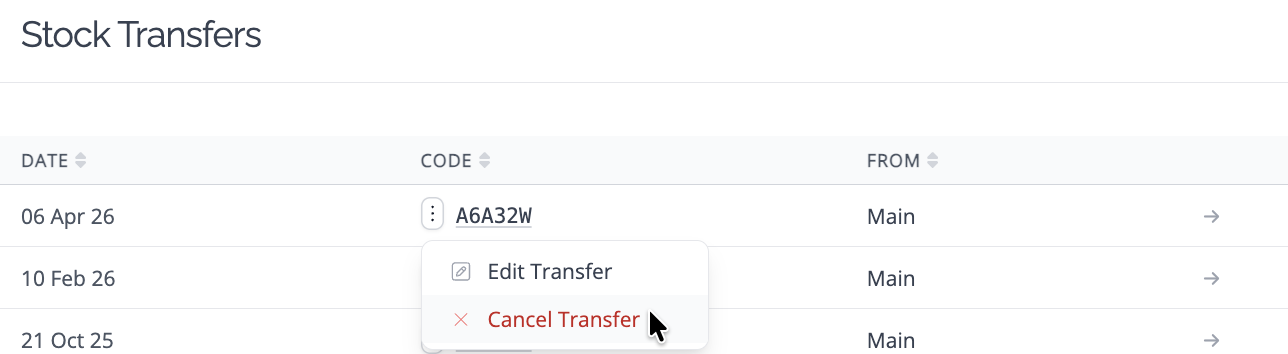
- Confirm the cancellation when prompted.
Cancelling a transfer reverses the stock movements associated with it. This action cannot be undone.
Downloading a PDF of a transfer
You can download a PDF copy of any transfer directly from its detail page:
- Open the transfer from your Transfers list.
- On the transfer detail page, click the three-dot overflow menu (top right) and select Download PDF.
- The PDF will download to your device.
Need Help?
Still have questions about transfers? Here are some related articles that might help:
Or get in touch, and we'll be happy to help!