
About Auto Manufacturing
Learn how to automate your workflows using our auto manufacture feature.
In this article:
- About Auto Manufacturing
- Automanufacture Rules
- Enabling Auto Manufactures
- Turning Off Auto Manufacturing
- Removing Auto Manufactures
- Production Statuses
- Stock Level Rules
Available in the following plans:
✗ Pro✗ Studio✓ Indie✓ Business✓ Growth
About Auto Manufacturing
The Auto manufacture feature allows you to automate the creation of your manufactures, based on the orders you receive. It is helpful for situations where products:
An order never adjusts your material stock by itself. Auto manufacturing is the only way an order can lead to material consumption. If auto manufacturing is switched off for a product, receiving orders for it won't touch your material stock at all.
- Are not created in advance as a batch and,
- Contain materials that do not change between manufactures and
- Do not require lengthy manufacturing stages (i.e. simple assemblies)
A simple example of auto manufacturing would be a charm bracelet in which customers select their desired charm from a list of available options. Since the finished product is only created when the order is received and only involves a relatively insignificant configuration time, this would be an ideal candidate for auto manufacturing.
Auto manufacturing can be configured at the account, product, or variation level.
The auto manufacturing flow can also additionally create any components involved in the product, and this can be configured for multi-level situations.
Automanufacture Rules
It's important to note that auto manufacturing will only occur for a product/variation ordered if:
- It is switched on (via the account, parent product, or variation)
- There is a recipe in place for the product ordered (for variations, the recipe needs to exist at either the variation level or the parent product level) and
- The automanufacture stock level rule indicates that the manufacture should be created based on available product stock levels
If these conditions are met, a manufacture will be created for the quantity ordered, and will use the same date as the order.
By default, this manufacture will be created regardless of the product or variations in the stock levels that are currently available. This can be further configured via your automanufacture stock level rule configurations.
Note: If the order eligible for auto manufacturing is later cancelled, the generated manufacture will be removed automatically if the auto removal feature is enabled.
This applies to whole-order cancellations only. If you cancel or refund a single line item within an order that otherwise remains active, the manufacture generated for that item is not removed automatically and will need to be deleted manually.
Enabling Auto Manufacturing
To enable auto manufacturing:
- Go to your Account Settings. (See: How to find your Account Settings page)
-
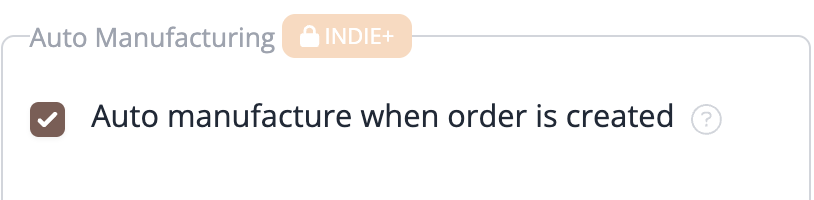
Scroll down to the Manufactures section and check the 'Auto manufacture when order is created' box.
- Click on Save details.
Configuring only specific products to Auto Manufacture
If you only want to use the auto-manufacture feature for specific products:
- Navigate to your Product edit page (How do I edit a Product?)
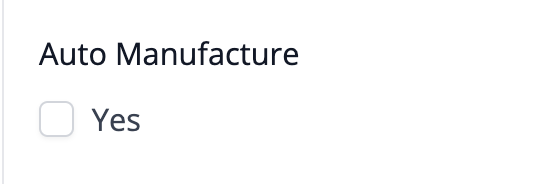
- On the form, under the Advanced heading, ensure that the Auto Manufacture checkbox is ticked.
-
Click the Save Product button to save the changes.
Configuring only specific variations to Auto Manufacture
If you only want to use the auto manufacture feature for specific variations under a product:
- Navigate to your Variation edit page
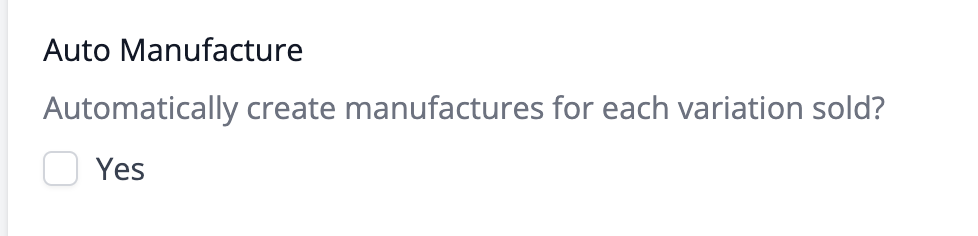
- Ensure that the Auto Manufacture checkbox is ticked on the form that appears.
-
Click the Save button at the bottom of the form.
Turning off auto manufacturing
Auto manufacturing has two switches: the account setting and each product's (or variation's) own setting. The two are combined with or, so either one being on is enough to trigger a manufacture.
Unticking Auto manufacture when order is created in your Account Settings stops auto manufacturing for any product that doesn't have its own Auto Manufacture checkbox ticked. While the account setting is on, each product's own checkbox is locked (shown as 'Yes' with a padlock icon) because it doesn't matter until the account setting is off. Once you turn the account setting off, check each product (and its variations) individually: if a product's own checkbox is still ticked, that product keeps auto-manufacturing on its own, and you'll need to untick it separately.
If you'd rather reduce how often auto manufacturing fires than switch it off completely, set your stock level rule to Out of Stock Only. Manufactures are then only created when a product is genuinely out of stock, instead of for every order.
Turning auto manufacturing off doesn't retrospectively remove anything. Manufactures already created stay as they are. The Remove auto manufacture(s) when order is cancelled setting only removes a manufacture when its order is cancelled. It doesn't run just because you've switched auto manufacturing off.
Configuring components to Auto Manufacture
When included in product manufacture, components can be set to auto manufacture themselves. This is particularly useful for bundling and kitting situations.
This can be configured for any recipe that includes the component or for each manufacture that consumes the component.
Directly underneath the material on the recipe form, a small wizard wand icon with a checkbox will appear. Check the box if you want each manufacture to set the component to auto manufacture automatically.

Removing Auto Manufactures
Once you have auto-manufacturing on, a product manufacture will be created whenever a qualified product is sold via an order.
If the order is eventually cancelled, you can optionally configure your account to remove the product manufacture if this fits your particular workflow.
It is important to note that any downstream auto-manufactures (i.e. components) will not be automatically removed, these will need to be assessed and deleted manually if required.
To enable removing automanufactures:
- Go to your Account Settings page. (See: How to find your Account Settings page)
- Scroll down to the orders section
- Check the Remove auto manufacture(s) when order is cancelled box.
- Click on Save details.
This applies to whole-order cancellations only. If you cancel or refund a single line item within an order that otherwise remains active, the manufacture generated for that item is not removed automatically and will need to be deleted manually.
Production Statuses
By default, the manufacture will be created with a production status of Completed. For eligible plans, this default status can be optionally changed See Configuring the default production status for automanufactures for more details.
You can choose the status that will automatically be assigned to all new automanufactures. Available options include:
- Not Started – For planning purposes, manufactures will be recorded but not yet in production.
- Work in Progress – Indicates that production has started.
- Completed – Treats the manufacture as finished, immediately updating product and materials stock levels.
This setting helps ensure your production pipeline reflects your current workflow at the moment each manufacture is created.
Stock Level Rules
This feature gives you more control over when auto-manufactures are created based on your product's available stock levels.
The setting currently offers two options:
All Stock Levels
Switching on this setting will mean that auto manufactures will be created regardless of the available stock levels.
Out of Stock Only
Switching on this setting will mean that auto manufactures will only be created if there is no available stock for the product (i.e. the current on hand stock level is 0).
Example: An order is placed that contains 1 x Red Bag. The stock level for the Red Bag before the order was 0. The stock level after the order is placed is -1 (0 - 1). If the stock level rule is Out of Stock Only, an automanufacture will be created for 1 item.
Example: An order is placed that contains 3 x Blue Bag. The stock level for Blue Bag before the order was 1. After the order is placed, the new stock level is calculated as -2. If the stock level rule is Out of Stock Only, an auto-manufacture will be created for all 3 items, bringing the stock on hand back to 1.
If Out of Stock Only is configured and there is already an amount in stock on hand when the automanufacture is created, the entire quantity will be manufactured regardless. This setting works best for situations where stock on hand is not kept.
Component stock level rules
Component auto-manufacture follows the same stock level rule as products. There's no separate setting for components.
- Under the default rule, All Stock Levels, a component auto-manufacture is created regardless of how much stock of that component is already on hand. Existing component stock is not consumed first.
- Under Out of Stock Only, the component's existing stock is used up before a new auto-manufacture is created, closer to a consume-first approach.
Example: A Red Bag is made from 2 units of Fabric, and Fabric is set to auto manufacture as a component. If the order doesn't trigger a new Red Bag manufacture, no Fabric is manufactured either. If it does, and the account's stock level rule is All Stock Levels, 2 units of Fabric are auto-manufactured for that order, even if there's already Fabric sitting on the shelf. Only under Out of Stock Only would existing Fabric stock be used first.
Component batch scaling
A component's own recipe can produce a bigger batch than a single manufacture needs. For example, a Fabric recipe might make 10 units per batch, but a Red Bag manufacture only needs 2 units of Fabric. When this happens, the component auto-manufacture only produces the quantity actually required, not the recipe's full batch output.
The recipe is scaled down proportionally: materials and labour are calculated per unit from the recipe, then multiplied by the quantity needed. The resulting manufacture only carries the materials and costs for those 2 units of Fabric, so no excess component stock is created.
Configuring an auto manufacture stock level rule
- Go to your Account Settings. (See: How to find your Account Settings page)
- Scroll down to the Manufactures section
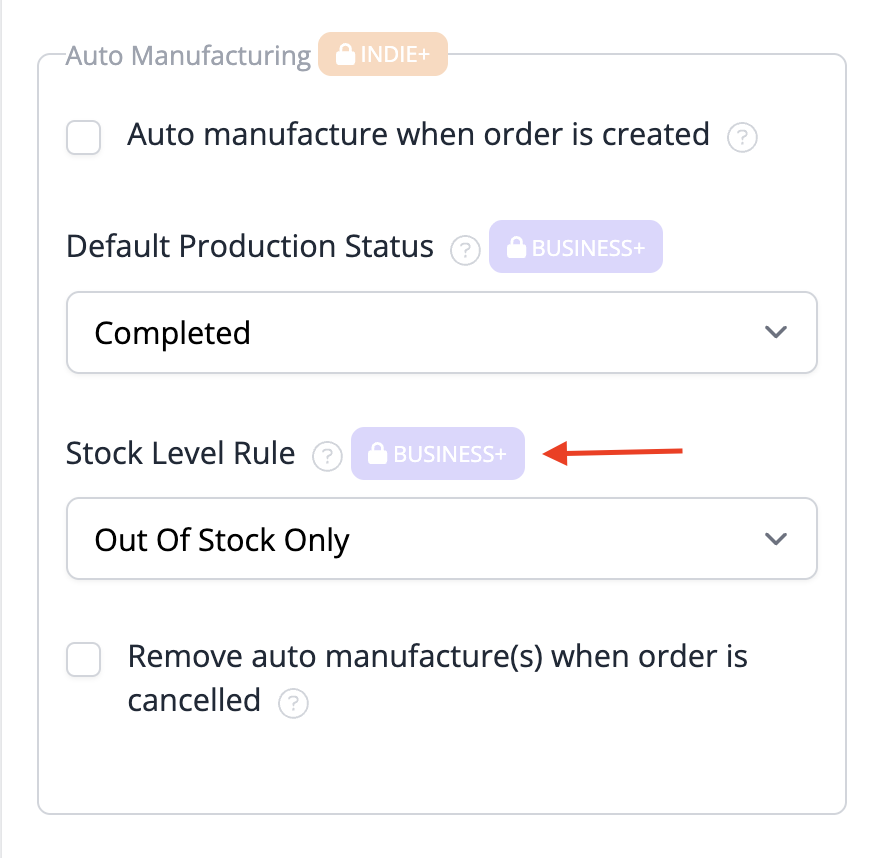
- Look for the dropdown menu labeled Auto Manufactures Settings.
-
Select your preferred option (All Stock Levels or Out of Stock Only).
- Click on the Save details button at the bottom of the form.
Need more help
Are you encountering any issues with auto manufacturing? Feel free to contact our support team for help.