
Updating materials via CSV
Material attributes can be updated in bulk via the Material Bulk Update feature. This feature allows you to update materials from a spreadsheet file at a time.
To use the Material Bulk Updater:
-
Go to your Materials page and apply searches or filters to generate the materials you want to update.

-
Click the Export button in the top right of the list.
- Make a copy of the file that downloads to have a backup in case you wish to revert your changes.
- Open and edit the CSV file in your spreadsheet program.
- Export your file to CSV format (How do I export my spreadsheet as CSV?).
-
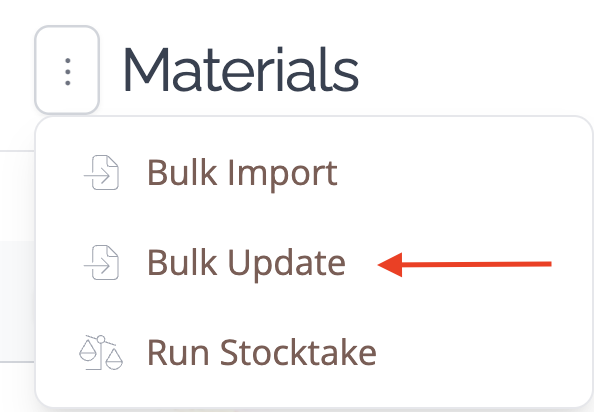
Return to your Materials page and hover over the ⋮ icon next to the header. Next, select the Bulk Update Materials option in the menu.
The bulk updater matches each row in your file to an existing material using the ID column, never the SKU or Name column. This means it's safe to edit a material's SKU or Name in your exported file and upload it as is: Stocksmith still matches each row to the correct material because the ID column hasn't changed.
Material details that can be imported by the bulk updater are:
Material attributes that the bulk updater can import are:
Components and non-inventoriable materials are not supported by this bulk updater. If a row in your file is for one of these, the whole row is skipped, including the Starting Quantity and Starting Unit Cost columns. To set a component's starting quantity or unit cost, do this when you first add the component, either one at a time or in bulk using the component CSV import. For a component you've already created, use the Edit your starting adjustment link on its edit page instead. These values can't be changed later with a bulk update or CSV re-import.
- SKU: Your SKU is your unique code identifier for the material.
- Name: The title of your product.
- Category: The category name for the material will be created automatically if this category does not yet exist.
- Tracking Unit: The unit of measurement you manufacture. For more information on Tracking Units, please see What is a Material Tracking Unit?.
- Purchase Unit: This is the unit you typically purchase in. It can be the same as your Tracking Unit. For more information on Purchase Units, please see What is a Material Purchase Unit?
- Purchase to Tracking Unit Conversion: Your Purchase to Tracking Unit Conversion allows you to nominate the number of tracking units in a single purchase unit. More information on how this works can be found here: How does the Purchase to Tracking Unit Conversion work?.
- Low Stock Limit: This is the lowest level of your stock for this material before it is marked as "low stock."
- State: Allows materials to be set as Active or Archived.
- Starting Quantity: The stock units on hand as of your account start date.
- Starting Unit Cost: The unit cost of all stock on hand as of your account start date.
- Bin Location Zone: The Zone component of your BIN location code.
- Bin Location Section: The Section component of your BIN location code.
- Bin Location Position: The Position component of your BIN location code.
Fields that cannot be updated:
It isn't possible to update the following details via the bulk updater as these are calculated automatically by the app:
- Unit Cost
- Actual Unit Cost
- Stock on Hand
- Stock Status
- Inventoriable Component