
Add, edit, or remove a variation.
Learn how to add, make changes, or remove a variation.
Variations are useful for tracking small differences in your products - you can pull these automatically from your integrations or create them manually when required.
Learn more about Variations here
In this article, we'll cover
Add a new variation
To add a new Variation:
- Go to your product page ( How do I find my product page?)
-
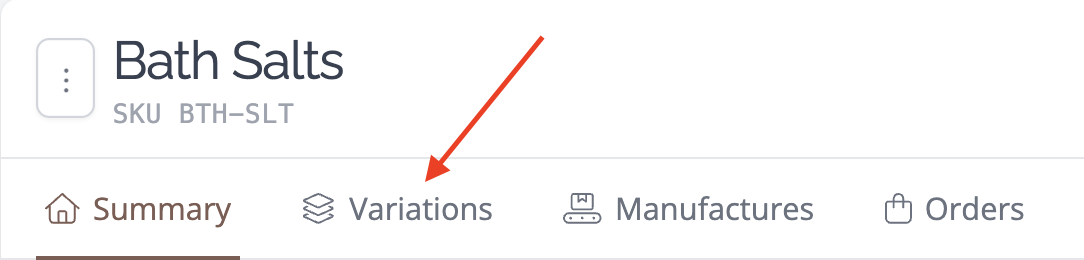
Click the Variations tab.
-
On the Variations page, click the Add Variation button in the top right-hand corner.

-
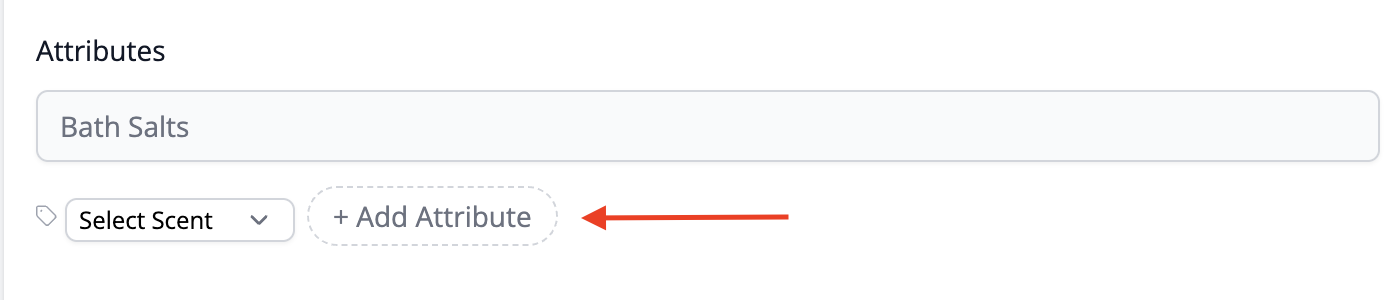
Configure the Variation Attributes you wish to use for this variation. To add a new attribute, click the + Add Attribute link immediately below the selection boxes.
-
Enter a SKU for this variation, if you use one. The SKU field starts empty: it isn't copied from the main product, and the main product's SKU isn't shown on this page. The SKU is optional, and you can use it later to search for the variation.
-
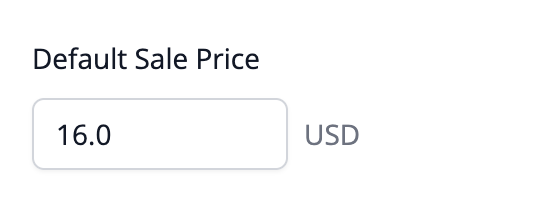
Check the Default Sale Price for this variation. It starts with the price from the main product, and you can change it here. This will be used to calculate pricing guidance and will automatically populate when you create new Orders for this variation. If your user isn't allowed to view product pricing, you won't see this field.
-
Optionally, set any of these other fields:
- Image: upload a picture of this variation.
- Low Stock Limit: the variation is marked as low stock when its available quantity falls below this number. It starts with the main product's limit.
- Auto Manufacture: create a manufacture automatically for new orders of this variation. You'll only see this field if your plan includes automatic manufactures.
- Notes: add any notes you want to keep with the variation.
- Click the Save button to create the Variation.
Note: You don't enter a name when you add a variation. Stocksmith creates the name from the attributes you select, and you can change it later using Edit Details.
Variation Attributes are configured for a Manufacture or Order Item.
Edit a Variation
- Navigate to the Variation's detail page ( How do I find a Variation?)
-
Click on the Edit Details button in the top right-hand corner of the page. Name, SKU, notes, and base price can all be edited via this page.

Note: Configured variation attributes cannot be changed. If you need to change the attributes, you'll want to remove this variation and re-add it with the correct attributes.
Remove a variation
A Variation can be deleted only if it is not associated with orders, manufactures, or recipes.
To delete a Variation:
- Navigate to the Variation page ( How do I find a variation page?)
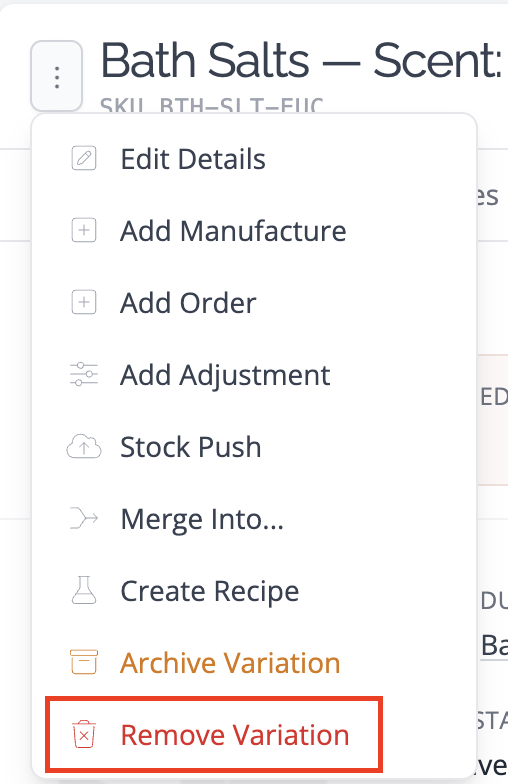
- Click the ⋮ menu on the left-hand side of the variation name
-
In the menu that appears, click the Remove Variation option.
Suppose you want to remove a variation because this combination is no longer being sold. In that case, it is advised that you leave this variation in place, as merging, moving, or removing data will impact your inventory and costings.
If you would like to remove a variation due to it being a duplicate, this is most likely due to duplicated variation attributes. Review your variation attributes and merge them where necessary to fix this issue. Variations will, in this case, be automatically merged as part of this process.