
Working with CSV exports in a spreadsheet
Open, filter, and analyse your CSV exports in a spreadsheet
This guide walks you through opening it correctly, filtering your data, and using basic formulas — so you can get the most out of your exports without needing to be a spreadsheet expert.
In this article:
- Opening a CSV file in your spreadsheet tool
- Filtering and sorting your data
- Using formulas for totals and currency
- Working with large CSV files
- Troubleshooting
- FAQ
Opening a CSV file in your spreadsheet tool
CSV files use comma separators and include a UTF-8 encoding marker (BOM) so that most spreadsheet tools detect the format automatically. The steps below ensure you get a clean result in each tool.
Microsoft Excel
Most of the time, double-clicking an exported CSV file will open it correctly in Excel. If the data appears jumbled or in a single column, use the import wizard instead.
To open using the import wizard (recommended on European locales or if double-clicking doesn't work):
- Open Excel with a blank workbook.
- Go to the Data tab and click From Text/CSV.
- Select your downloaded export CSV file.
- In the preview dialogue, confirm:
- Delimiter is set to Comma
-
File origin is set to 65001: Unicode (UTF-8)
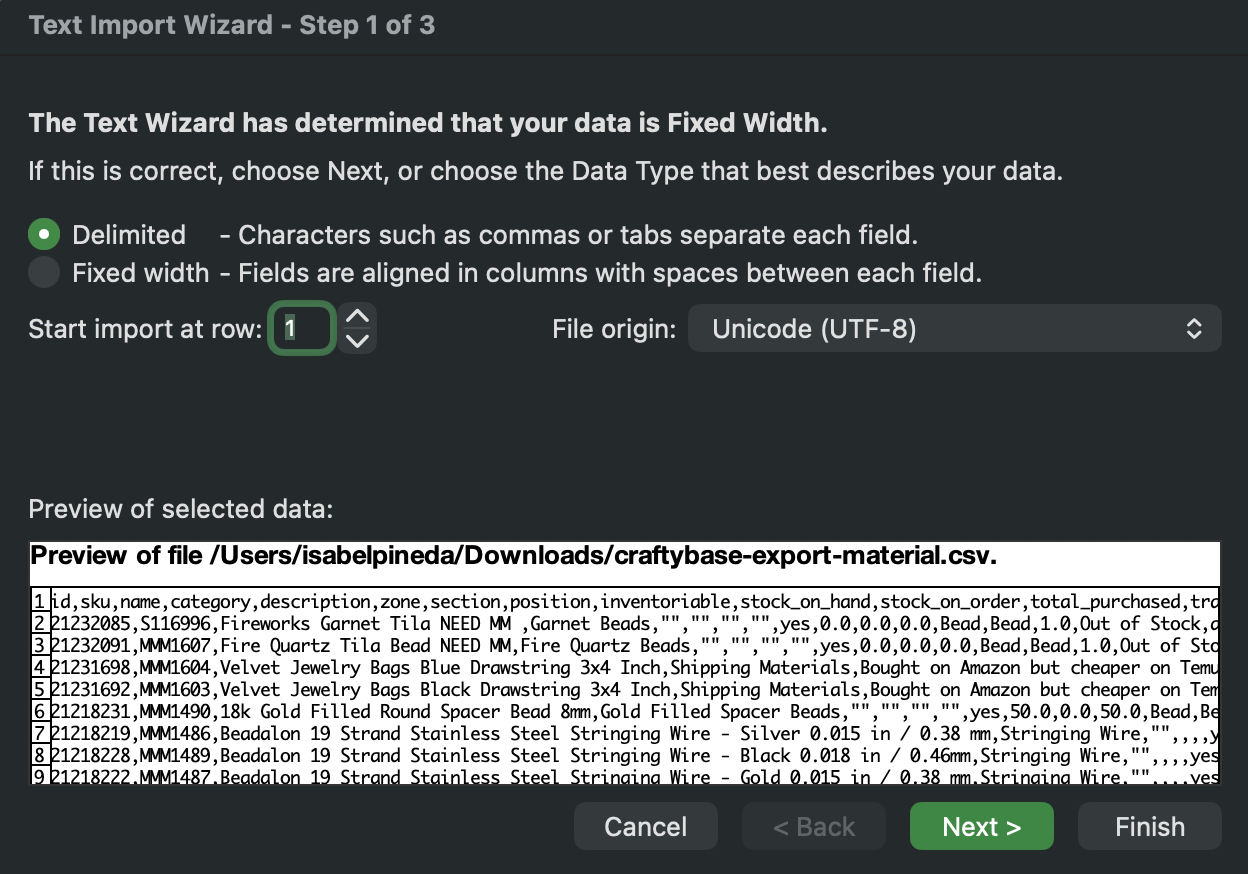
- Click Load.
If you are on a European locale (France, Germany, and so on), Excel may default to semicolons as the delimiter. Check the delimiter setting before loading — see the delimiter troubleshooting section below if data appears in a single column.
Google Sheets
- Open Google Sheets and create a new blank spreadsheet.
- Go to File > Import.
- Click Upload and select your CSV file, or drag it into the window.
- In the import settings, set:
- Separator type: Comma
-
Convert text to numbers, dates, and formulas: on (recommended)
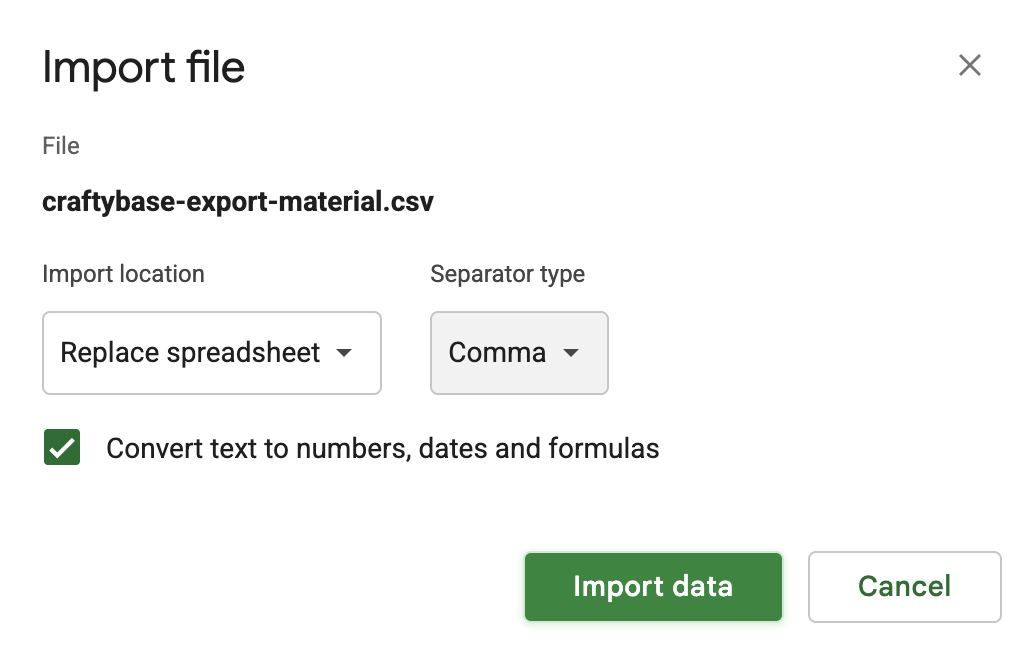
- Click Import data.
LibreOffice Calc
- Open LibreOffice Calc.
- Go to File > Open and select your CSV file.
- The Text Import dialog will appear automatically.
- Confirm:
- Character set: Unicode (UTF-8)
- Separator options: tick Comma only (untick Tab and any others)
- Click OK.
Filtering and sorting your data
Once your CSV is open, filters and sorting make it easy to find what you need in a large export — for example, locating all products below their reorder point, or finding manufactures within a specific date range.
Applying a filter
- Click any cell in the header row (row 1) of your data.
- Turn on filters:
- Excel / LibreOffice: go to Data > AutoFilter, or press Ctrl+Shift+L (Windows) / Cmd+Shift+L (Mac)
- Google Sheets: go to Data > Create a filter
- Drop-down arrows will appear on each column header. Click the arrow on the column you want to filter.
- Tick or untick values to show or hide rows, or use the search box to find a specific value.
To filter a numeric range — for example, all materials with stock on hand below 10 — use Number Filters > Less Than in the drop-down (Excel/LibreOffice) or a custom filter in Google Sheets.
Sorting a column
- Click the drop-down arrow on the column header you want to sort.
- Choose Sort A to Z (ascending) or Sort Z to A (descending). For numbers and dates, ascending = smallest/oldest first.
To sort by multiple columns — for example, by category, then by name within each category — use Data > Sort in Excel or Google Sheets and add multiple sort levels.
Using formulas for totals and currency
These are the formulas most often used when reviewing exported data.
Adding up a column (SUM)
Use SUM to total a column — for example, total materials cost across all manufactures.
- Click an empty cell below the column you want to total.
- Type:
=SUM( - Click and drag to select the cells you want to add up (for example,
D2:D500). - Close the bracket and press Enter:
=SUM(D2:D500)
You can also select an entire column by clicking the column letter (e.g. D). The formula becomes =SUM(D:D) — simpler, but can be slower on large files.
Currency conversion
If you want to review costs in a different currency, multiply each value by an exchange rate.
- In an empty cell (for example,
H1), type your exchange rate — for example,1.62. - In the column next to your cost values, enter a formula referencing that rate:
=D2*$H$1 - The
$symbols lock the reference toH1so it doesn't shift when you copy the formula down. - Copy the formula down the full column by dragging the small square in the bottom-right corner of the cell downward.
In Google Sheets, you can use a live exchange rate instead of a manual one. In the exchange rate cell, enter: =GOOGLEFINANCE("CURRENCY:AUDUSD") (replace AUDUSD with your currency pair). Your converted column will update automatically.
Calculating gross margin
If your export includes revenue and cost columns, you can calculate gross margin percentage like this:
- In an empty column, add a header like Margin %.
- In the first data row, enter:
=(E2-F2)/E2— replacing E2 with your revenue cell and F2 with your cost cell. - Format the column as a percentage: select the column, then use Format > Number > Percent (or click the % button in the toolbar).
- Copy the formula down the column.
Working with large CSV files
Some the app exports — particularly recipes with many materials, or manufactures over a long date range — can produce large files. Here's how to work with them confidently.
Row limits by tool
| Microsoft Excel | 1,048,576 rows per sheet. Most the app exports will be well under this limit. |
| Google Sheets | 10 million cells per spreadsheet. For very large exports (100,000+ rows), performance can degrade. |
| LibreOffice Calc | 1,048,576 rows per sheet. Generally handles large files well on modest hardware. |
Tips for large files
- Filter before exporting — in the app, narrow your date range or use search filters before exporting. A smaller export is faster to work with.
- Freeze the header row — so column names stay visible as you scroll. In Excel and LibreOffice: View > Freeze Rows and Columns (with row 1 selected). In Google Sheets: View > Freeze > 1 row.
- Use specific ranges in formulas — formulas like
=SUM(A:A)on a 100,000-row file recalculate slowly. Use a specific range (e.g.=SUM(A2:A50000)) for better performance. - Split the file if needed — if an export is too large to work with comfortably, export separate date ranges and work with each file separately.
Troubleshooting
All my data is appearing in a single column
The spreadsheet opened the file using the wrong delimiter. the app exports use commas — but tools on European locales sometimes default to semicolons.
- Close the file without saving.
- Re-import using the import wizard: in Excel, go to Data > From Text/CSV; in LibreOffice, use File > Open (the wizard opens automatically); in Google Sheets, use File > Import.
- Set the delimiter to Comma in the import dialog.
- Check the preview — data should now appear in separate columns. Click Load or OK.
On Windows, Excel's default delimiter is controlled by your system's regional settings. To change it permanently: Control Panel > Region > Additional Settings, then change List separator to a comma.
Special characters (accents, symbols) appear as garbled text
The file was opened with the wrong character encoding. the app exports are UTF-8 encoded with a byte-order mark (BOM) that most tools detect automatically.
- Close the file without saving.
- Re-import using the import wizard.
- Set the character encoding to UTF-8: in Excel this is the "File origin" setting (select 65001: Unicode (UTF-8)); in LibreOffice it's the "Character set" drop-down.
- Check the preview for correct characters, then import.
Numbers or IDs are being auto-formatted as dates
Excel sometimes auto-detects values like short ID codes or fractions as dates.
- During import, click the affected column in the data preview.
- Set the column data type to Text — this prevents auto-conversion.
- Complete the import. Note that text-formatted columns won't work with numeric formulas — format as Number later if you need to calculate with those values.
My export file is empty or has only a header row
The export ran successfully, but no records matched the filters active at export time.
- Check your filters in the app — if you had active search filters or a very narrow date range, results may have been empty. Clear any filters and export again.
- Check you're opening the right file — downloaded export filenames look like
the app-export-product.csv. Check your downloads folder for the most recent file. - Try a smaller export — if a very large export appears to stall, narrow the date range and export in batches.
FAQ
Can I edit the CSV and re-import it into the app?
Yes — for most data types. the app supports CSV imports for materials, products, variations, purchases, recipes, and more. After editing your exported file, use the relevant import page to update records in bulk.
When saving an edited CSV to re-import, always save it as CSV (comma-delimited) — not as an .xlsx Excel file. Bulk importers require plain CSV format.
Which columns can I safely delete before re-importing?
You can remove or hide columns you don't need for analysis. When re-importing, only the columns required by the specific importer need to be present. The importing materials and importing products guides list the required and optional columns for each importer.
My spreadsheet is slow to respond after I open a large export
Large files with many formulas recalculate on every change. Switch to manual calculation while you work: in Excel, go to Formulas > Calculation Options > Manual, then press F9 to update results when needed. In Google Sheets this option isn't available — work with smaller exports instead.
Can I use pivot tables with the app exports?
Yes. Once imported, your data works like any other spreadsheet data — you can create pivot tables, use charts, or use Excel's Power Query to transform and combine columns. These are advanced features outside the scope of this guide; Microsoft's and Google's support sites have detailed documentation.
Need Help?
If you're still having trouble with your CSV file, please get in touch with our support team — we're happy to help.