
About Auto-Push
Automatically maintain and sync accurate stock levels across your sales integrations using Auto-Push.
This article will explain what Auto-Push is, when to use it, and how it helps keep your inventory in sync across your connected integrations with minimal ongoing effort.
Auto-Push is a setting for Stock Push that automatically sends stock updates from the app to your integrations on a set schedule. Once enabled, the Draft Pushes created by your stock changes are sent automatically, removing the need to manually action individual Stock Pushes.
Auto-Push is available on our Business or Growth plans.
We'll cover:
Auto-Push Overview
The app creates a Draft Push for a listing whenever its Available quantity differs from the quantity your integration has. Manufactures, stock adjustments, and orders pulled in from integrations are the usual cause. This happens whether or not Auto-Push is on.
When Auto-Push is enabled, the app sends every Draft Push that is waiting at the next scheduled run, without requiring manual action. Listings whose Available quantity already matches your integration have no Draft Push, so they aren't sent. A Draft Push that can't be sent, such as one with a negative quantity, stays in the Draft tab.
By using the app as your source of truth, Auto-Push helps maintain consistent stock levels across your sales channels over time, reducing the need for ongoing manual stock updates.
When Auto-Push works best
Auto-Push is most effective once your inventory is accurate and the app is established as your source of truth for stock levels.
Auto-Push works best when:
- Your stock quantities in the app are accurate and up to date
- You're comfortable with the app maintaining stock levels across your integrations
- You want stock updates to happen automatically without manual review each time
If you're still reviewing stock levels, correcting discrepancies, or getting set up, manual Stock Pushes give you more visibility and control while you align your inventory.
Enabling Auto-Push
Auto-Push is enabled per integration and can be configured from your integrations page
To enable Auto-Push for your integration:
- Navigate to your selected Integrations page
-
Under the Stock Push column, toggle Auto Push to on
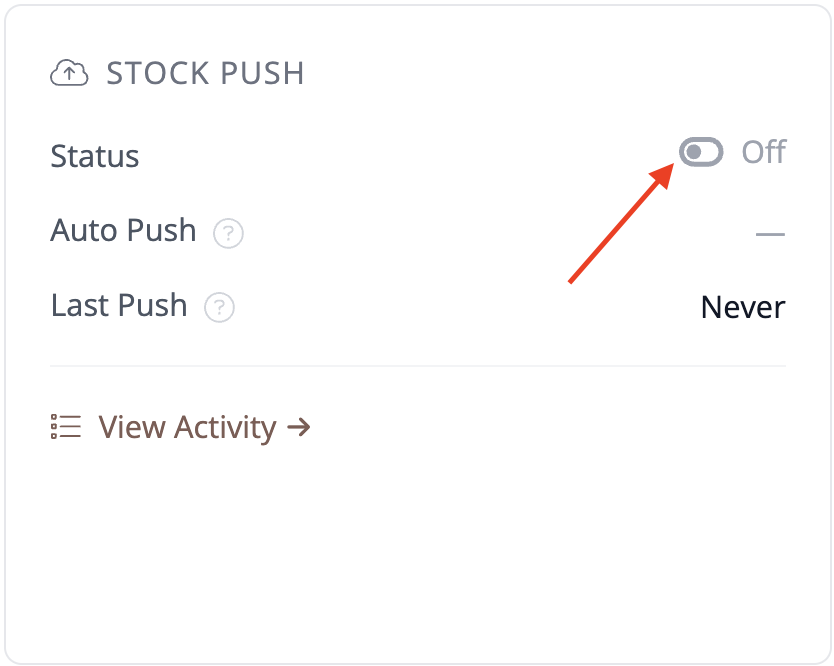
- This will take you to the Auto Push Schedule configuration page
- Under Schedule Frequency, choose how often you'd like the app to automatically push stock (Manual Only, Hourly, or Daily). This can be changed at any time.
Important: Ensure Stock Levels Are Up to Date
Before enabling Auto Push, make sure all your stock levels in the app are accurate and up to date. This includes completing any backdated manufactures, purchases, or adjustments.
Auto-Push sends the Draft Pushes already waiting on your Stock Push page, including ones created when you set up Stock Push. If any of them show a zero or inaccurate quantity, that quantity is pushed to your integration at the first scheduled run. Review the Draft tab first.
This includes products with no recorded stock in the app: their stock is 0, so if your integration shows a higher quantity, Auto-Push sets it to 0.
- Select Save Schedule to apply your changes and enable Auto Push for the integration
Nothing is sent when you save the schedule. At the next scheduled time, the app pushes every Draft Push that is waiting, including any created before you turned Auto-Push on.
When viewing your integration's Stock Push page, you'll also see the timestamp of the last automated push in the header, so you can confirm the most recent sync.

Troubleshooting
If you're having issues pushing stock to a specific integration, check our dedicated guides for setup and variation requirements:
- Pushing Stock Updates to Shopify
- Pushing Stock Updates to Etsy
- Pushing Stock Updates to WooCommerce
- Pushing Stock Updates to Square
- Pushing Stock Updates to Faire
These articles walk through common setup steps and edge cases that can prevent stock updates from going through.
FAQ
When I turn on Auto-Push, does it send every listing or only the ones that changed?
Neither, exactly. Auto-Push sends every listing that has a Draft Push waiting when the next scheduled run starts. A listing has a Draft Push when its Available quantity in the app differs from the quantity your integration has.
- A linked listing whose Available quantity already matches your integration is not sent.
- A listing whose Available quantity changed after you set up Stock Push is sent if it still doesn't match.
- A listing that hasn't changed since you set up Stock Push is also sent if it didn't match when you enabled Stock Push, because its Draft Push has been waiting since then.
To see what will go out, open the Draft tab on your Stock Push page before you enable Auto-Push. The Draft Pushes listed there are what Auto-Push sends at the next scheduled run.
Can I still run manual Stock Pushes if Auto-Push is enabled?
Yes. Manual Stock Pushes are still available and can be run at any time, even when Auto-Push is enabled.
Should Auto-Push be used to clean up my Inventory?
No. Auto-Push is designed to maintain accurate stock levels over time, not to fix existing discrepancies. Inventory should be reviewed and corrected in the app first. We recommend starting with manual Stock Pushes, then enabling Auto-Push once everything is aligned to keep stock in sync going forward.
Why has my Etsy Auto-Push been disabled?
In rare cases, Auto-Push may be automatically disabled for Etsy if a large number of Draft Pushes build up in the queue. When this happens, Auto-Push is paused to prevent a large or unintended stock update from being sent automatically.
To re-enable Auto-Push, review and push your existing Draft Pushes to reduce the queue below the limit. Once the draft queue is reduced, Auto-Push can be turned back on as normal.
If your workflow regularly generates a high volume of legitimate stock changes, please get in touch with our team to discuss options.
VIDEO: Getting Started with Auto-Push in the app
Need Help?
Still have questions about using Stock Push? Please get in touch, and we'll be happy to help.