
About purchase ETAs
Track your incoming material shipments via our Purchase ETA feature.
Purchase ETAs (Estimated Time of Arrival) allow you to track your material shipments, showing you materials that are overdue or expected to arrive. ETAs can be added on either the add or edit purchase form and is an optional field.
Available in the following plans:
✗ Pro✗ Studio✓ Indie✓ Business✓ Growth
We'll Cover:
- Calculating Purchases ETAs
- Configuring Purchase ETAs
- Setting an ETA for a purchase
- Understanding the ETA filter options
- Understanding partially received purchases
- Generating a list of overdue purchases
Calculating Purchases ETAs
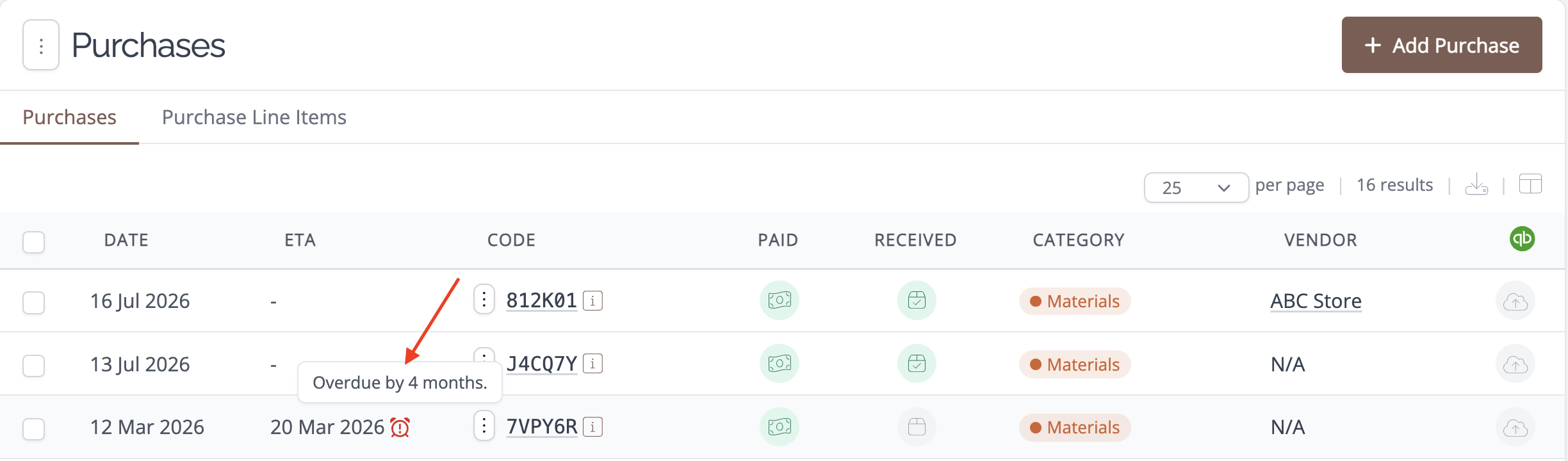
If a purchase order is not marked as received and the ETA date has passed, the PO will be flagged as overdue, and an icon will appear next to the date of the purchase in the list or detail view.
Hovering over the overdue icon will display how long the purchase is overdue by.
Marking the purchase as received will remove the overdue flag.
Configuring Purchase ETAs
To use the ETA feature, you'll need to configure this as part of your account settings:
- Go to your Account Settings
- Select the checkbox titled Track ETAs for Purchases
- Click the Save button.
Setting an ETA for a purchase
Once you have configured your account for Purchase ETAs, you can set individual ETAs on your purchases.
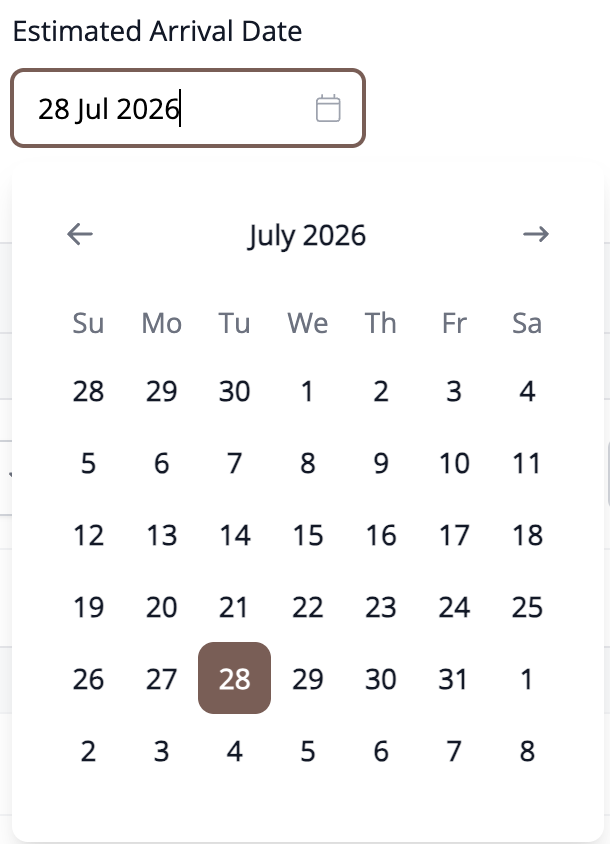
To set a purchase ETA:
- Add or Edit a Purchase
- Scroll to the Additional Details section
- In the box called "Estimated Arrival Date", select a date from the chooser
- Save the Purchase
Understanding the Purchase ETA filter options
There are two options available on the Purchases list filter that can be used to locate overdue and expected purchases by ETA:
Received Status
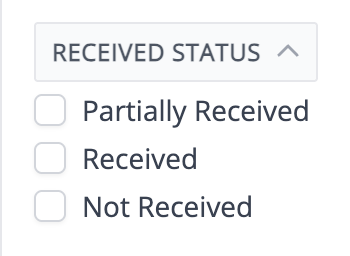
This filter can be used to generate a list of purchases that are received, partially received, and not received. Using this filter in conjunction with the ETA filter will create a list of overdue purchases (see below for instructions). What does "partially received" mean?
ETA
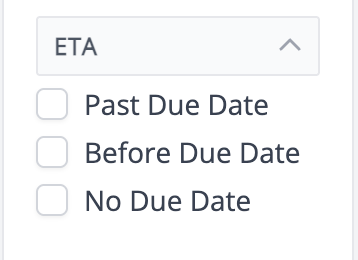
This filter option can be used to generate a list of purchases based on their estimated time of arrival. The options available are Past Due Date, Before Due Date, and No Due Date.
Understanding partially received purchases
A purchase becomes Partially Received once some of its line items are marked received and others aren't. This is one of the three states the Received Status filter groups your purchases by, alongside Received and Not Received.
Receiving works at the line item level, not the quantity level. You can mark a whole line item as received, but you can't record that only part of its quantity has arrived: a line item is either received or it isn't.
If a supplier ships part of the quantity on one line item, split it into two line items:
- Edit the purchase
- Change the quantity on the existing line item to match what's arrived, and mark it as received
- Add a new line item for the remaining quantity, and leave it unmarked
- Save the purchase
Generating a list of overdue purchases
To create a list of all material purchases that are overdue:
- Navigate to your Purchases list page
- Click the Received Status filter section and select the Not Received option
- Next, click the ETA filter section and select the Past Due Date option.
- Click the Filter button to display the results.