
About order payments
Learn how to track payments for your orders
In this article, we'll cover:
Marking an order as Paid
If you have manually entered your Order, you can change the paid status of an Order by following these steps:
-
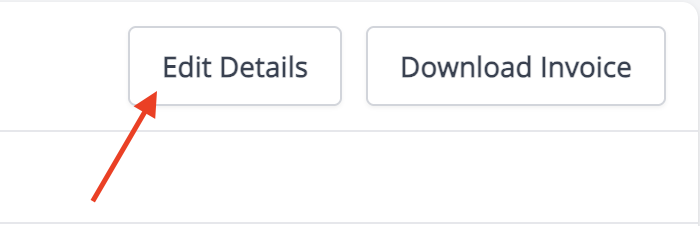
Go to your Orders page and select the order you wish to mark as Paid by clicking on the edit details button at the top right of the order page.
- On the form that appears, scroll down the form that appears until you find the Additional Details dropdown section and select the + icon to open it
-
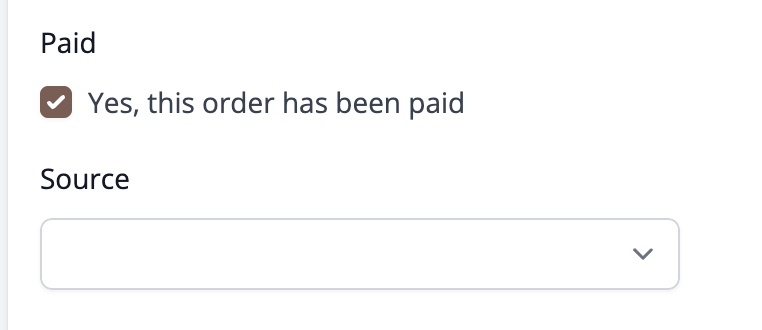
Check the 'Paid' Tickbox:
-
Click the Save button to save your changes.

Tip: If your order has been pulled from Etsy, it will automatically be updated with the current paid status.
Handling partial payments for orders
Currently, the app doesn't track individual payments made for an order, but we have this on our to-do list. In the meantime, you might like to use the description/notes field to log this information. Only mark it as paid when you receive the final payment.
Seeing what a customer owes you
Stocksmith doesn't show a single running balance for a customer, but you can find out what they owe you by filtering their orders down to the unpaid ones.
To see all unpaid orders:
- Go to your Orders page.
- In the filter panel on the left, open the Paid section.
- Check No to show only orders that haven't been marked as paid.
To see unpaid orders for one customer:
- Go to Contacts and open the customer's record.
- Select the Orders tab. This shows only that customer's orders.
- Apply the Paid filter and check No, the same way as above.
Because partial payments aren't tracked (see Handling partial payments for orders, above), an order only ever shows as fully paid or fully unpaid, so this filter gives you the full outstanding amount, not a part-paid balance.
No report adds up outstanding amounts across a customer's orders. If you need a total, filter the customer's orders to Paid: No as above, then use the download icon in the pagination bar to export the filtered list as a CSV. The export includes each order's total, so you can add them up yourself.